
MS Sentinel: Just Looking

Microsoft Sentinel challenge for SOC analysts: incident investigation & threat hunting.
easy

To access material, start machines and answer questions login.
Scenario: You are a Analyst and/or practitioner or maybe a Cloud Security Engineer. What we know is that incidents have been fired in Microsoft Sentinel, and you have been called to the task. Can you handle these incidents?
In this challenge, as a SOC Analyst, you will be investigating incidents and their corresponding analytics rules.
1. First, go ahead and join the lab to get the lab credentials.
Cloud Details > Environment tab > Join Lab

2. Log in to the Azure portal (opens in new tab) with the lab credentials (make sure you first log out of any previous lab account).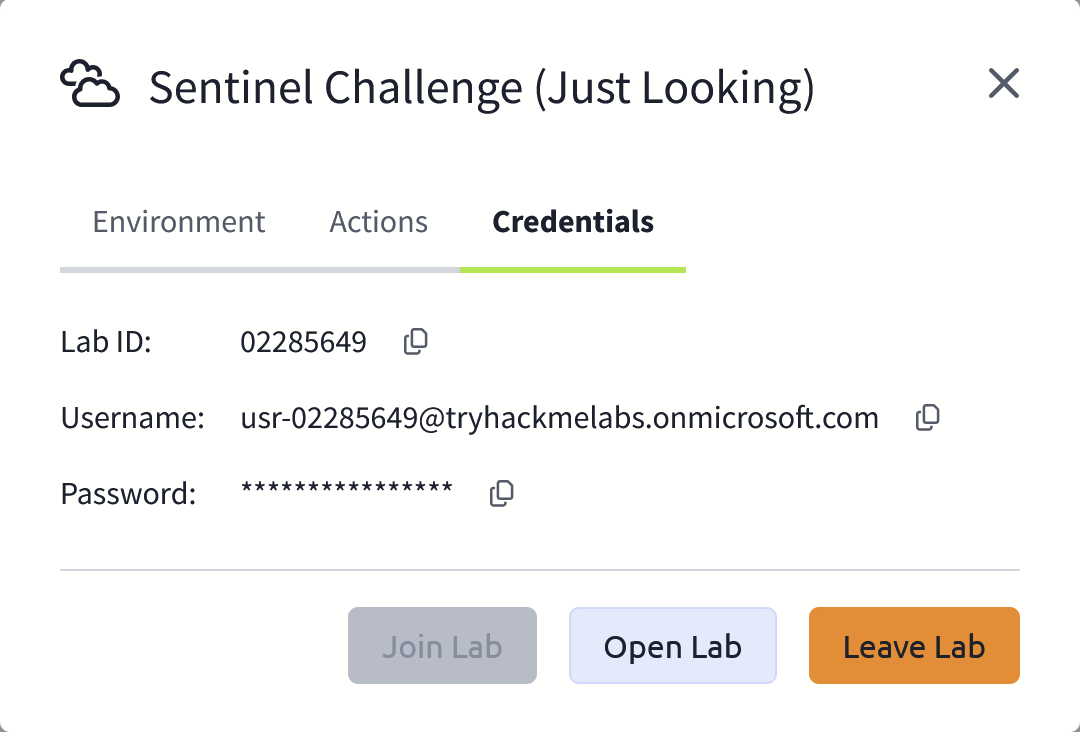
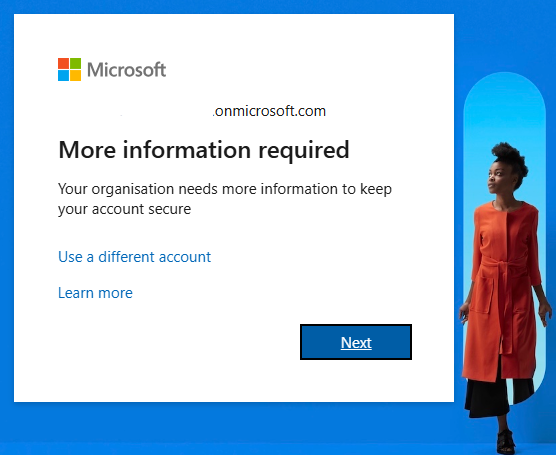
With the new Microsoft multifactor authentication enforcement, you will be required to set up to sign in to the Microsoft Azure portal. Click Next to configure MFA using your preferred method.
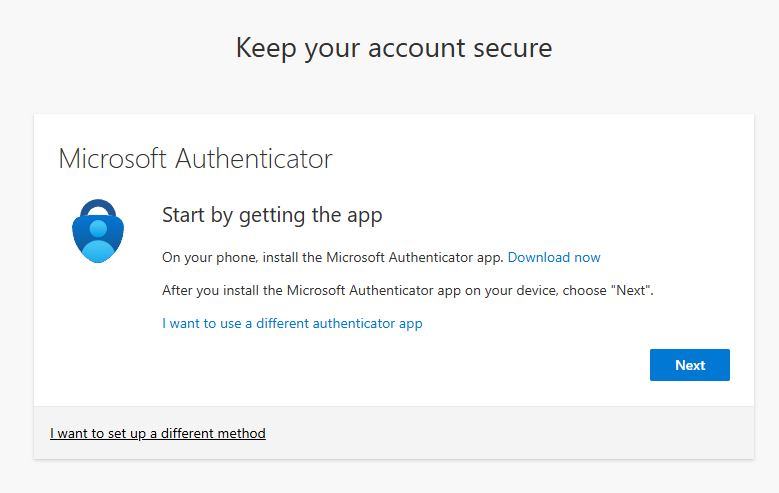
The default authentication method is to use the free Microsoft Authenticator app. If it is installed on your mobile device, select Next and follow the prompts to add this account. If you don't have it installed, a link is provided to download it.
3. Navigate to the "Resource Groups" to confirm the lab resource group is ready. It should be named rg-AZURE_LAB_ID.
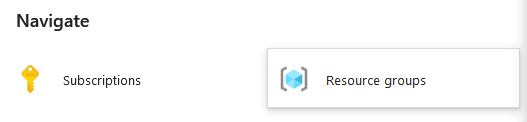
4. Navigate into the lab resource group, which will initially be empty. We will deploy lab assets shortly.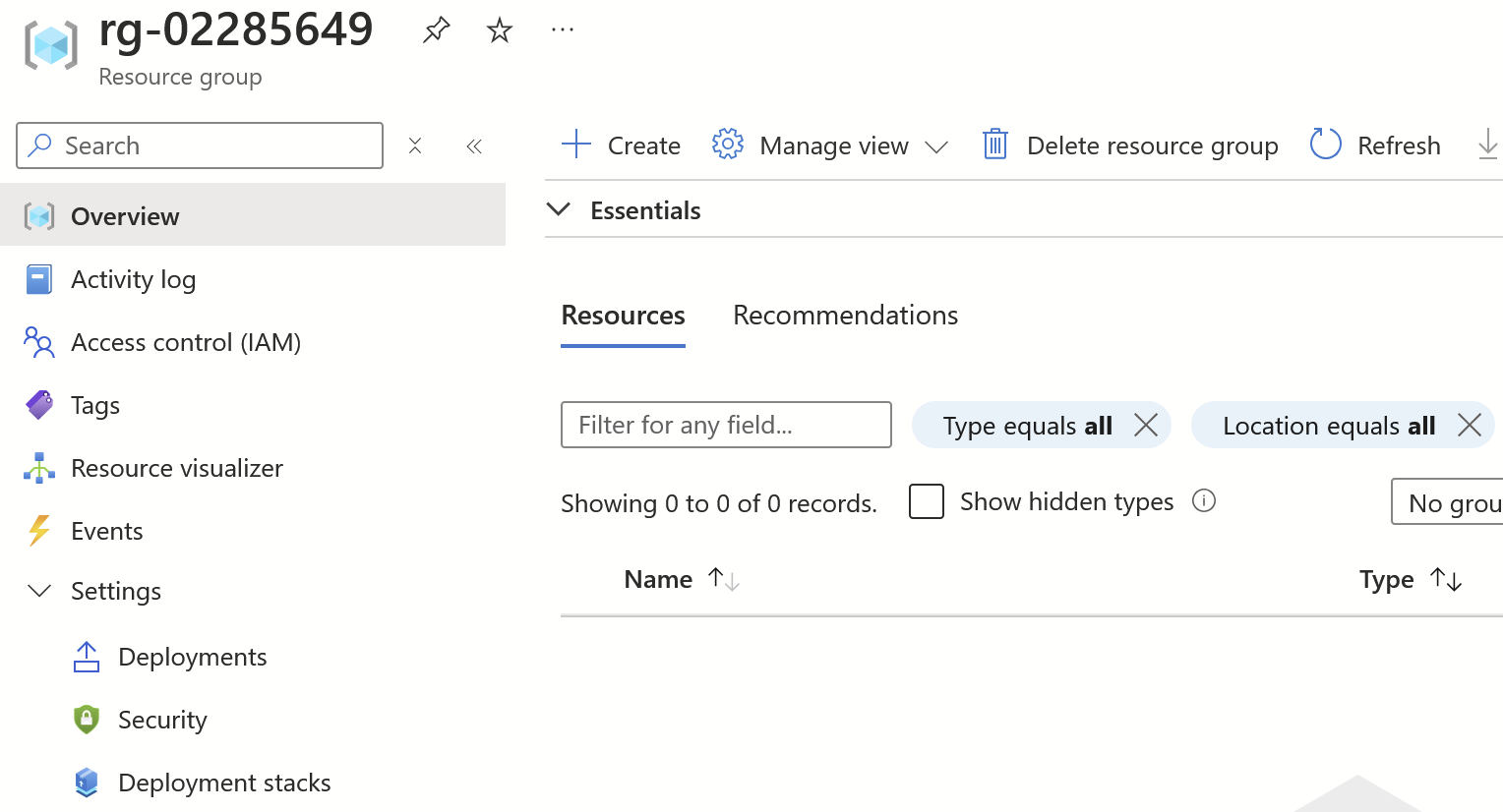
Now that we have verified the access to the Azure lab environment, next up, we will deploy the lab challenge logs.
I have successfully started the challenge lab and logged in to the Azure portal.
Ready to learn Cyber Security?
The MS Sentinel: Just Looking room is only available for Premium or Max subscribers. Signup now to access more than 500 free rooms and learn cyber security through a fun, interactive learning environment.
Already have an account? Log in