Task 1: Introduction
Read the blog post for a more in-depth explanation. Room created by BeeSec
Shodan.io is a search engine for the Internet of Things. Ever wondered how you can find publicly accessible CCTV cameras? What about finding out how many Pi-Holes are publicly accessible? Or whether your office coffee machine is on the internet?
Shodan.io is the answer! Shodan scans the whole internet and indexes the services run on each IP address.
Note: if you are following along, you’ll need a premium Shodan account.
Finding services
Let’s say we are performing a pentest on a company, and we want to find out what services one of their servers run.
We need to grab their IP address. We can do this using ping.
We can ping tryhackme.com and the ping response will tell us their IP address.
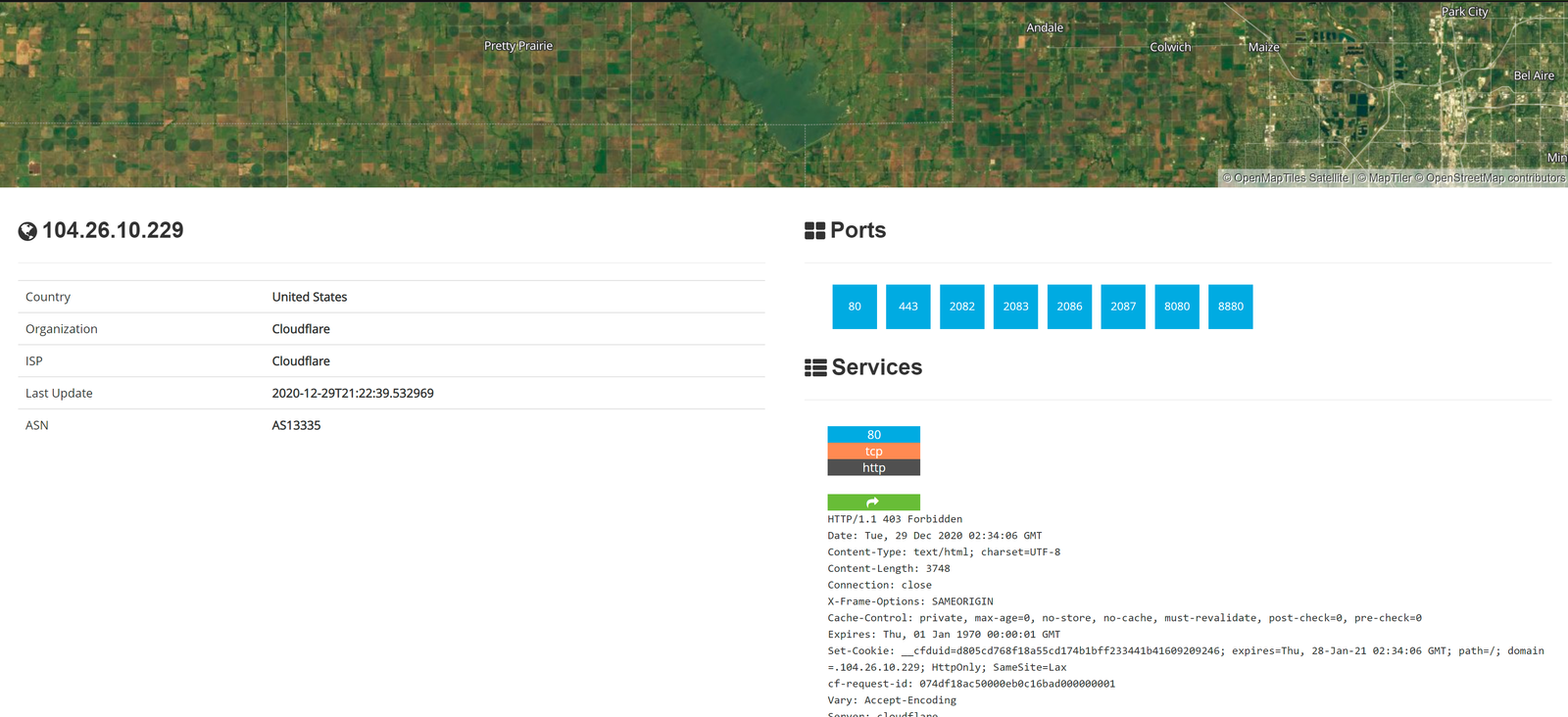
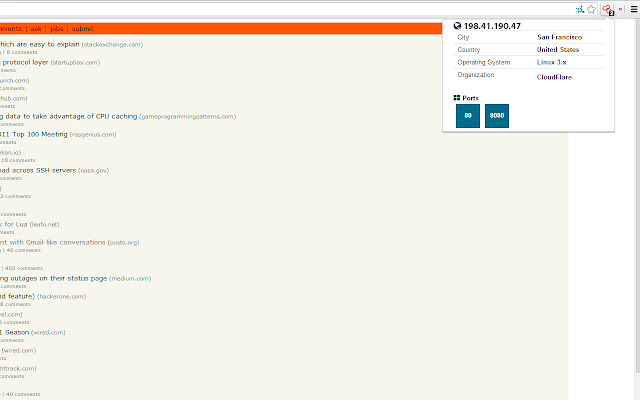
Then once we do this, we put the IP address into Shodan to get:
We can see that TryHackMe runs on Cloudflare in the United States and they have many ports open.
Cloudflare acts as a proxy between TryHackMe and their real servers. If we were pentesting a large company, this isn’t helpful. We need some way to get their IP addresses.
We can do this using Autonomous System Numbers.
Autonomous System Numbers
An autonomous system number (ASN) is a global identifier of a range of IP addresses. If you are an enormous company like Google you will likely have your own ASN for all of the IP addresses you own.
We can put the IP address into an ASN lookup tool such as https://asnlookup.com/,
Which tells us they have the ASN AS14061.
Tryhackme isn’t a mega large corporation, so they don’t own their own ASN. When we google AS14061 we can see it is a DigitalOcean ASN number.
On Shodan.io,we can search using the ASN filter. The filter is ASN:[number] where number is the number we got from earlier, which is AS14061.
Doing this, we can see a whole range 6.2 million websites, in fact) that are on this one single ASN!
https://www.shodan.io/search?query=asn%3AAS14061
Knowing the ASN is helpful, because we can search Shodan for things such as coffee makers or vulnerable computers within our ASN, which we know (if we are a large company) is on our network.
Getting started
Time to dig in! If you get stuck, look at the previous task for some help! :)
Banners
To get the most out of Shodan, it’s important to understand the search query syntax.
Devices run services, and Shodan stores information about them. The information is stored in a banner. It’s the most fundamental part of Shodan.
An example banner looks like:
{

"data": "Moxa Nport Device",

"Status": "Authentication disabled",

"Name": "NP5232I_4728",

"MAC": "00:90:e8:47:10:2d",

"ip_str": "46.252.132.235",

"port": 4800,

"org": "Starhub Mobile",

"location":
{
				"country_code": "SG"
		}

 }
We’re looking at the output of a single port, which includes information about the IP and authentication details.
You don’t really see this outside of the API, so we won’t delve into it.
Answer the questions below
Go to Shodan.io