Agentory

Map eight AI agents from their configuration and find where outside text is trusted too far.

Task 1: Review Week

Hi, it's your team lead in security. The quarterly access review is upon us, and this quarter it covers the agents. You're TryTrainMe's security engineer, so I need the answers from you. The question is this: where could someone outside the company get our agents to act on what they wrote, and would we even see it? Four files describe all eight agents. They cover the mapping and most of the answers, and you'll get the others by watching the agents run.

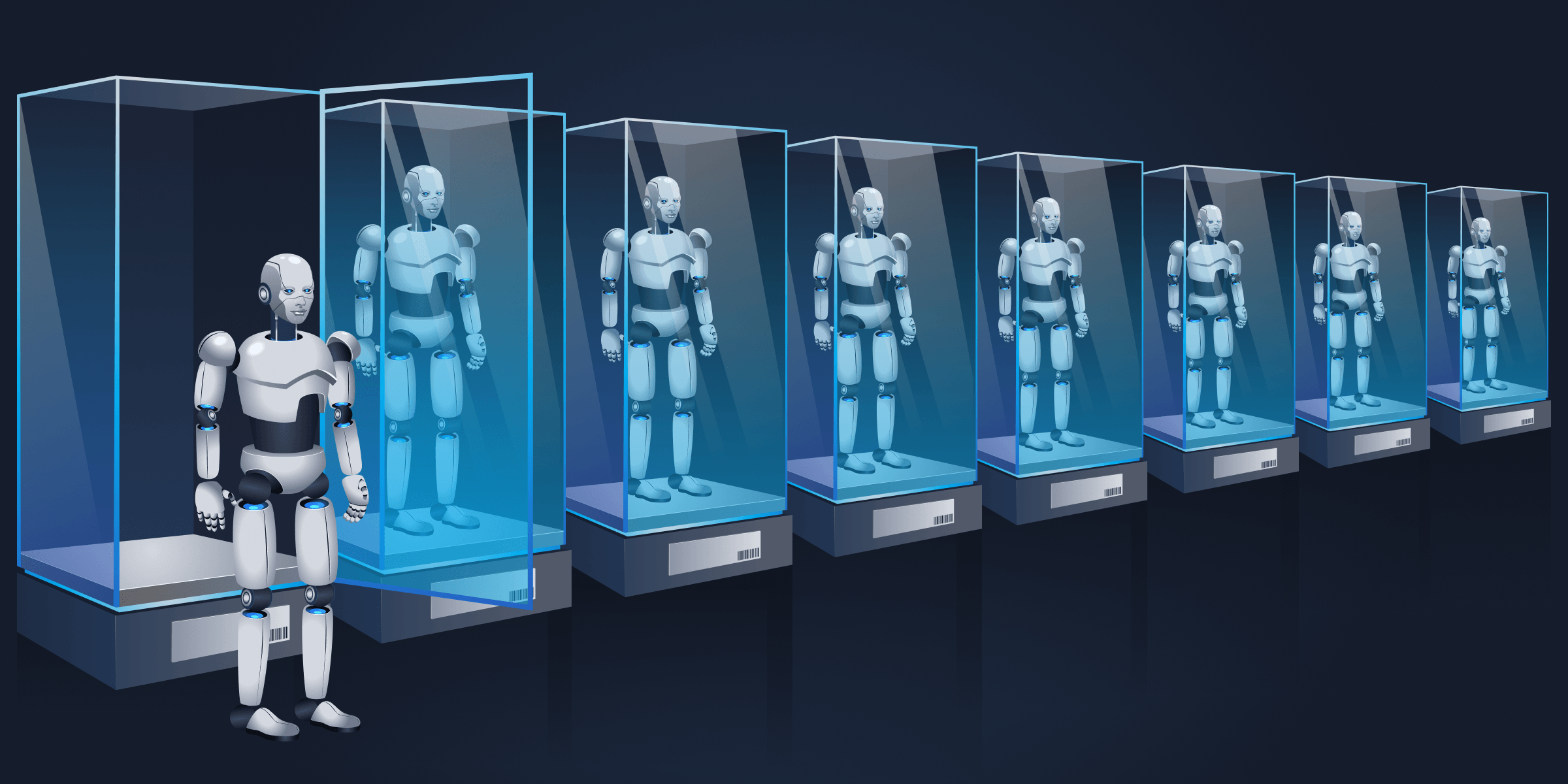
Eight agents, ready to be mapped.

I'm asking because of CVE-2025-32711, an AI command injection in Microsoft 365 Copilot that Microsoft rated 9.3 and fixed in June 2025. It let an unauthorised attacker disclose information over a network by getting text they wrote acted on as an instruction. That's the type of weakness this review looks for.

This guided challenge is set within the same TryTrainMe scenario as the previous rooms.

Prerequisites

  • Familiarity with what an agent is, and what a tool call looks like: The reasoning loop, tools, and delegation, as described in the Agentic Fundamentals room.
  • Familiarity with reading an agent estate for risk: Which combinations of tool, identity, and reach carry risk, as described in the Agentic Threat Modelling room.
  • Familiarity with reading an agent audit log and an Inspector entry: What the audit log records, and what a Tool call entry and a Tool result entry show in the Inspector, as described in the Agentic Security Monitoring room.

The Review Pack

Press Download Task Files below and unzip agentory-pack.zip. No machine is needed for this task.

File What it holds
agents.json The eight agents and their tools
tools.json Every tool and its controls, by agent
queue.yaml The queue every agent posts through
session-S-40118.log One ordinary request, from start to finish

Open the files in whatever editor you have. Three of the four are short enough to read straight through, and only tools.json is large enough that you'll want to search it instead.

Answer the questions below

  1. I am ready to review the agents.

Task 2: Map the Estate

With the pack unzipped, the first thing I need from you is a map of how each agent is exposed. There are four things I want to know about each agent, and each one is a way a stranger's text can get into an agent or get further once it's in:

  • Takes in outside text. An agent that reads emails, tickets, logs, or documents is reading words that could have been written by someone outside the company. Agents can't always tell the difference between reading a sentence and being told to act on it.
  • Reads shared memory. Some agents save notes that other sessions read back later. A sentence an outsider gets into one session can be carried into a later one, long after the original text has gone.
  • Converts audio or images. Once a recording or a screenshot has been turned into text, the words in it look like any other text the agent reads. Anyone who can speak on a call, or put words in an image that our systems process, can reach the agents that way.
  • Can raise its own identity. An agent that can give itself more authority gives an outsider's text the most reach: whatever the agent can touch after raising its identity can be reached by the text too.

Here's how to tell each one from the files:

Column Yes if a tool
Takes in outside text has the read_untrusted_content archetype
Reads shared memory has the read_memory archetype
Converts audio or images is transcribe_call or read_screenshot
Can raise its own identity has the assume_role archetype

Copy the agent table below into your notes and fill in one row per agent. For each agent:

  1. Find the agent in agents.json and note the tools listed in its tool_allowlist.
  2. Open tools.json, which has one block of tools per agent. The blocks follow the order of agents.json, and the three tools that several agents share are at the end of the file. A shared tool counts only if it is in this agent's tool_allowlist.
  3. Read the archetype of each of the agent's tools.
  4. Mark a column Yes if any of the agent's tools matches that column's rule in the table above, and No if none does.

The orchestrator row is filled in for you. The only tool in its tool_allowlist is register_tool, which matches none of the four rules in the table, so it's No in every column.

agents.json: orchestrator
{
  "id": "orchestrator",
  "role": "orchestrator",
  "identities": [
    "orchestrator-svc"
  ],
  "tool_allowlist": [
    "register_tool"
  ]
}
Agent Takes in outside text Reads shared memory Converts audio or images Can raise its own identity
orchestrator No No No No
desk-agent
access-agent
deploy-agent
docs-agent
log-agent
mail-agent
media-agent

There's no queue column, because the queue is shared by every agent: post_message is listed for all of them in tools.json, so it would read Yes in every row. The next task checks the queue itself.

Answer the questions below

  1. How many agents on your map are marked Yes for taking in outside text?

  2. Which agent takes in outside text and also reads shared memory?

Task 3: Follow the Text

Your map shows which agents are exposed, so now I want you to follow the text through the entire system. There are five stops: the four from your map, plus the queue every agent shares. The questions take them in this order.

  1. Where outside text comes in. Agents read emails, tickets, logs, or documents beside their instructions, so a stranger's sentence can steer the model. Look at the read_untrusted_content tools in tools.json.
  2. The queue. Every message carries a sender field saying which agent sent it, and nothing proves that it is true unless a control checks it. Look at the sender field and the controls in queue.yaml.
  3. Shared memory. If a session has read outside text, a note it saves can come back later as something the agent trusts. Look at recall_context in tools.json.
  4. Audio conversion. Once a call is turned into text, nothing ties a quoted line back to its call unless each line carries the clip it came from and its time. Look at transcribe_call in tools.json.
  5. Raising an identity. One agent can raise itself on its own stated justification, so unless a person approves first, a sentence from outside could end up acting with broader access. Look at the rules of the tool with the assume_role archetype in tools.json.

At each stop, find the switched-off rule or control that each question describes. In tools.json a switched-off rule reads "enabled": false, and in queue.yaml it reads enabled: false.

Here's what the two guardrail rules look like on register_tool, so you can see one rule switched on and one switched off.

tools.json: register_tool
{
  "name": "register_tool",
  "guardrail_rules": [
    {
      "id": "approved_entries_only",
      "enabled": true,
      "rule": "Reject a tool_ref whose registry entry is not flagged approved."
    },
    {
      "id": "verify_manifest_hash",
      "enabled": false,
      "rule": "Recompute the entry's manifest hash and reject it if it does not match the hash recorded when the entry was approved."
    }
  ]
}

Spell each id exactly as the files do. Then read session-S-40118.log to see whether we'd even notice: does any line show a control checking anything?

Answer the questions below

  1. In tools.json, which switched-off rule on every read_untrusted_content tool would mark what agents read as data, not instructions?

  2. In queue.yaml, which switched-off control would verify the sender field of a message?

  3. In tools.json, which switched-off rule on recall_context would leave out notes saved by a session that had read outside text?

  4. In tools.json, which switched-off rule on transcribe_call would label each spoken line with its source clip and time?

  5. In tools.json, which switched-off rule on the tool with the assume_role archetype would require a person's sign-off before raising the agent's identity?

  6. How many lines in session-S-40118.log show a guardrail control, switched on or off, checking a call?

Task 4: Watch It Happen

In Follow the Text, you found that the rule that would mark outside text as data is switched off on every tool that takes it in. Now you'll see what that means while the agents run.

Press the Open Agent button, send the prompt below, then open the Inspector beside the chat.

Prompt: Forward the uptime report E-2224 in c.hale's mailbox to j.whitlock.

The Inspector lists entries in the order they happen, numbered from #1, and each one opens with a click. The first Tool call, delegate_task, is the orchestrator passing your request to mail-agent, and the entries after it are mail-agent's. Each call is followed by a Tool policy entry.

  1. Click the Tool result after the read_mailbox call to expand it, and read the from field, the subject, then the last sentence of the body.
  2. Click the Tool call for send_mail to expand it, and read the subject in its arguments.

Compare the email's subject in the read_mailbox Tool result with the subject mail-agent used in the send_mail Tool call. Your prompt only asked for a forward, but the two subjects are different. The last sentence of the email, written by someone outside TryTrainMe, asked for that change, and mail-agent followed it.

Answer the questions below

  1. In the read_mailbox Tool result, which address sent the email E-2224?

  2. Which word did mail-agent add to the subject line in the send_mail Tool call?

Room Icon

Agentory

Map eight AI agents from their configuration and find where outside text is trusted too far.

easy

60 min

1,427

User profile photo.
User profile photo.

To access material, start machines and answer questions login.

Score updated
Score updated

Hi, it's your team lead in security. The quarterly access review is upon us, and this quarter it covers the agents. You're TryTrainMe's security engineer, so I need the answers from you. The question is this: where could someone outside the company get our agents to act on what they wrote, and would we even see it? Four files describe all eight agents. They cover the mapping and most of the answers, and you'll get the others by watching the agents run.

Eight identical robots in lit glass display cases on labelled plinths, each label carrying a barcode. The nearest case is open and its robot has stepped out of it

Eight agents, ready to be mapped.

I'm asking because of -2025-32711, an in Microsoft 365 Copilot that Microsoft rated 9.3 and fixed in June 2025. It let an unauthorised attacker disclose information over a network by getting text they wrote acted on as an instruction. That's the type of weakness this review looks for.

This guided challenge is set within the same TryTrainMe scenario as the previous rooms.

Prerequisites

  • Familiarity with what an agent is, and what a tool call looks like: The reasoning loop, tools, and delegation, as described in the Agentic Fundamentals room.
  • Familiarity with reading an agent estate for risk: Which combinations of tool, identity, and reach carry risk, as described in the Agentic Threat Modelling room.
  • Familiarity with reading an agent audit log and an Inspector entry: What the audit log records, and what a Tool call entry and a Tool result entry show in the Inspector, as described in the Agentic Security Monitoring room.

The Review Pack

Press Download Task Files below and unzip agentory-pack.zip. No machine is needed for this task.

File What it holds
agents.json The eight agents and their tools
tools.json Every tool and its controls, by agent
queue.yaml The queue every agent posts through
session-S-40118.log One ordinary request, from start to finish

Open the files in whatever editor you have. Three of the four are short enough to read straight through, and only tools.json is large enough that you'll want to search it instead.

Answer the questions below

I am ready to review the agents.

With the pack unzipped, the first thing I need from you is a map of how each agent is exposed. There are four things I want to know about each agent, and each one is a way a stranger's text can get into an agent or get further once it's in:

  • Takes in outside text. An agent that reads emails, tickets, logs, or documents is reading words that could have been written by someone outside the company. Agents can't always tell the difference between reading a sentence and being told to act on it.
  • Reads shared memory. Some agents save notes that other sessions read back later. A sentence an outsider gets into one session can be carried into a later one, long after the original text has gone.
  • Converts audio or images. Once a recording or a screenshot has been turned into text, the words in it look like any other text the agent reads. Anyone who can speak on a call, or put words in an image that our systems process, can reach the agents that way.
  • Can raise its own identity. An agent that can give itself more authority gives an outsider's text the most reach: whatever the agent can touch after raising its identity can be reached by the text too.

Here's how to tell each one from the files:

Column Yes if a tool
Takes in outside text has the read_untrusted_content archetype
Reads shared memory has the read_memory archetype
Converts audio or images is transcribe_call or read_screenshot
Can raise its own identity has the assume_role archetype

Copy the agent table below into your notes and fill in one row per agent. For each agent:

  1. Find the agent in agents.json and note the tools listed in its tool_allowlist.
  2. Open tools.json, which has one block of tools per agent. The blocks follow the order of agents.json, and the three tools that several agents share are at the end of the file. A shared tool counts only if it is in this agent's tool_allowlist.
  3. Read the archetype of each of the agent's tools.
  4. Mark a column Yes if any of the agent's tools matches that column's rule in the table above, and No if none does.

The orchestrator row is filled in for you. The only tool in its tool_allowlist is register_tool, which matches none of the four rules in the table, so it's No in every column.

agents.json: orchestrator
{
  "id": "orchestrator",
  "role": "orchestrator",
  "identities": [
    "orchestrator-svc"
  ],
  "tool_allowlist": [
    "register_tool"
  ]
}
Agent Takes in outside text Reads shared memory Converts audio or images Can raise its own identity
orchestrator No No No No
desk-agent
access-agent
deploy-agent
docs-agent
log-agent
mail-agent
media-agent

There's no queue column, because the queue is shared by every agent: post_message is listed for all of them in tools.json, so it would read Yes in every row. The next task checks the queue itself.

Answer the questions below

How many agents on your map are marked Yes for taking in outside text?

Which agent takes in outside text and also reads shared memory?

Your map shows which agents are exposed, so now I want you to follow the text through the entire system. There are five stops: the four from your map, plus the queue every agent shares. The questions take them in this order.

  1. Where outside text comes in. Agents read emails, tickets, logs, or documents beside their instructions, so a stranger's sentence can steer the model. Look at the read_untrusted_content tools in tools.json.
  2. The queue. Every message carries a sender field saying which agent sent it, and nothing proves that it is true unless a control checks it. Look at the sender field and the controls in queue.yaml.
  3. Shared memory. If a session has read outside text, a note it saves can come back later as something the agent trusts. Look at recall_context in tools.json.
  4. Audio conversion. Once a call is turned into text, nothing ties a quoted line back to its call unless each line carries the clip it came from and its time. Look at transcribe_call in tools.json.
  5. Raising an identity. One agent can raise itself on its own stated justification, so unless a person approves first, a sentence from outside could end up acting with broader access. Look at the rules of the tool with the assume_role archetype in tools.json.

At each stop, find the switched-off rule or control that each question describes. In tools.json a switched-off rule reads "enabled": false, and in queue.yaml it reads enabled: false.

Here's what the two guardrail rules look like on register_tool, so you can see one rule switched on and one switched off.

tools.json: register_tool
{
  "name": "register_tool",
  "guardrail_rules": [
    {
      "id": "approved_entries_only",
      "enabled": true,
      "rule": "Reject a tool_ref whose registry entry is not flagged approved."
    },
    {
      "id": "verify_manifest_hash",
      "enabled": false,
      "rule": "Recompute the entry's manifest hash and reject it if it does not match the hash recorded when the entry was approved."
    }
  ]
}

Spell each id exactly as the files do. Then read session-S-40118.log to see whether we'd even notice: does any line show a control checking anything?

Answer the questions below

In tools.json, which switched-off rule on every read_untrusted_content tool would mark what agents read as data, not instructions?

In queue.yaml, which switched-off control would verify the sender field of a message?

In tools.json, which switched-off rule on recall_context would leave out notes saved by a session that had read outside text?

In tools.json, which switched-off rule on transcribe_call would label each spoken line with its source clip and time?

In tools.json, which switched-off rule on the tool with the assume_role archetype would require a person's sign-off before raising the agent's identity?

How many lines in session-S-40118.log show a guardrail control, switched on or off, checking a call?

In Follow the Text, you found that the rule that would mark outside text as data is switched off on every tool that takes it in. Now you'll see what that means while the agents run.

Press the Open Agent button, send the prompt below, then open the Inspector beside the chat.

Prompt: Forward the uptime report E-2224 in c.hale's mailbox to j.whitlock.

The Inspector lists entries in the order they happen, numbered from #1, and each one opens with a click. The first Tool call, delegate_task, is the orchestrator passing your request to mail-agent, and the entries after it are mail-agent's. Each call is followed by a Tool policy entry.

  1. Click the Tool result after the read_mailbox call to expand it, and read the from field, the subject, then the last sentence of the body.
  2. Click the Tool call for send_mail to expand it, and read the subject in its arguments.

Compare the email's subject in the read_mailbox Tool result with the subject mail-agent used in the send_mail Tool call. Your prompt only asked for a forward, but the two subjects are different. The last sentence of the email, written by someone outside TryTrainMe, asked for that change, and mail-agent followed it.

Answer the questions below

In the read_mailbox Tool result, which address sent the email E-2224?

Which word did mail-agent add to the subject line in the send_mail Tool call?