

Linux Fundamentals (Pt1)
Embark on the journey of learning the fundamentals of Linux. Learn to run some of the first essential commands on an interactive terminal.
easy

To access material, start machines and answer questions login.
Set up your virtual environment

Where is used?
It's fair to say that Linux is a lot more intimidating to approach than Operating System's (OSs) such as Windows. Both variants have their own advantages and disadvantages. For example, Linux is considerably much more lightweight and you'd be surprised to know that there's a good chance you've used Linux in some form or another every day! Linux powers things such as:
- Websites that you visit
- Car entertainment/control panels
- Point of Sale (PoS) systems such as checkout tills and registers in shops
- Critical infrastructures such as traffic light controllers or industrial sensors
- Phones, and similar small computing devices
- And much much more!
Deploying your first Linux machine
This room has a Ubuntu Linux machine that you can interact with all within your browser whilst following along with this room's material. To get started, simply press the green Start Machine button below.
Once started, a card will appear at the top of the room:
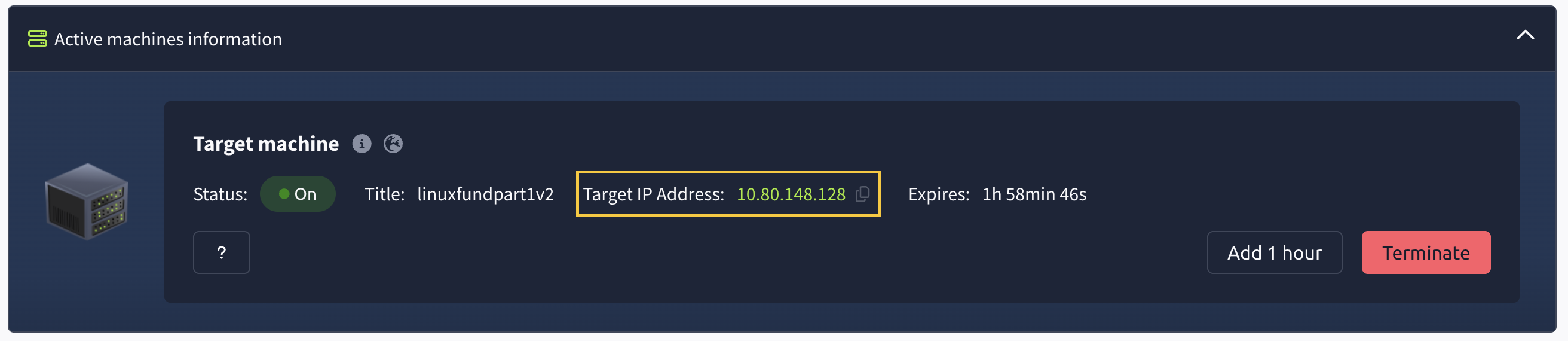
This contains all of the information for the machine deployed in the room including the IP address and expiry timer - along with buttons to manage the machine. Remember to "Terminate" a machine once you are done with the room. More information on this can be found in the tutorial room.
For now, press "Start Lab Machine" where you will be able to interact with your own Linux machine within your browser whilst following along with this room:
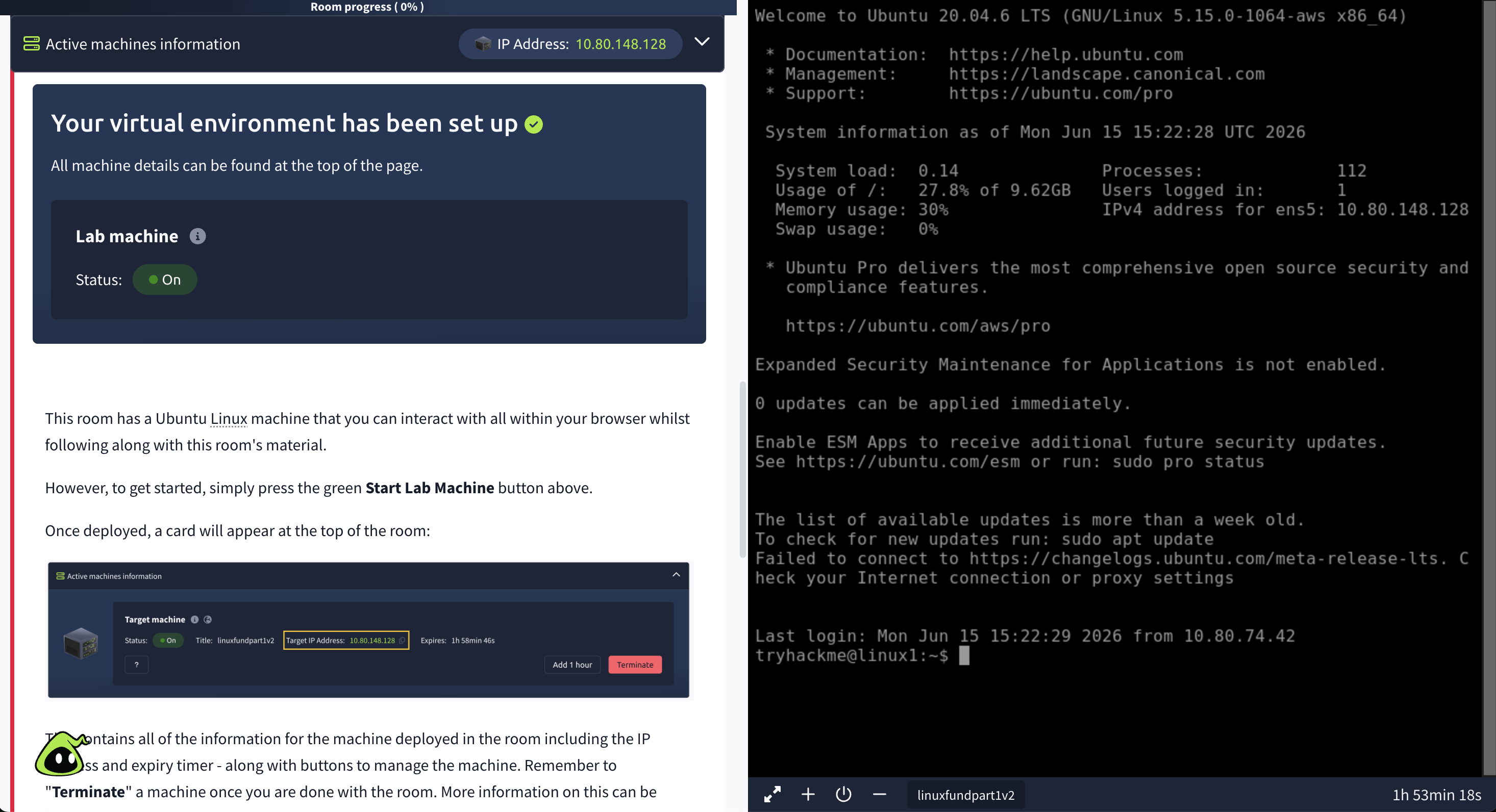
I've deployed my machine and am ready to go
Who are you on this machine?

is a popular choice for servers and the machines that you'll interact within cyber security. This interaction starts with the terminal, not a mouse. In this room, you will interact with your first ever Linux terminal - a place where we can run commands on the system.
Being familiar with the terminal (command line interface) on Linux is a critical skill as you will most likely spend most of your time here in Cyber security. From running hacking tools to hunting down attackers.
A command is an instruction that we can give the computer to perform a given task. One of the first commands we can do is whoami. This is important in Cyber security because you will often be changing users on the machine, which determines what you can and cannot do.
whoami |
tells you who you are on the system |
When you run your first command, you will see some text. We call this output. Interacting with Linux feels like a conversation. You give it an instruction, and it gives you output. We can ask Linux to output specific text for us.
echo |
output some specific text that is provided |
To echo the text "TryHackMe", we can use echo TryHackMe. For multiple words, we will need to wrap these in quotes. For example, echo "hello world". Using echo is just the start of a very important skill in Cyber security: being able create output and sending it somewhere. You will get to see how this skill is further used in the upcoming tasks.

You'll need to...
whoami command to see who you are on the system.echo to output the text TryHackMe.Pro tip: When using the terminal, you can press the up and down arrow keys on your keyboard to scroll through commands that you have already entered.
Why you're doing this
When first interacting with a machine, it's important to know who we are on the system. This often tells us what sort of access we have. In Cyber security, you will often find yourself switching between users on the same system. Moreover, using echo is a building-block for the very important skill that is being able to send and store information in Linux.
What command would we use to find out who we are on the system?
What command would we use to output some text?
Move around without ever touching a mouse
Let's learn how to navigate around the system's files via the terminal. Four commands do almost all navigation
ls |
list what's in the current folder |
cd |
change directory — move into a folder |
cat |
show the contents of a file |
pwd |
print working directory — "where am I?" |
On Linux, you may notice that files and folders show as different colours. This makes it easy to identify what it is. On this Linux system, folders are blue.

You'll need to...
ls to see what's in your home folder.cd to change folder. We will want to use ls again to see what files are now in the folder we've entered (known as working directory).cat to output the contents of any file.pwd to see where we are within the system.Why you're doing this
Navigating the system like this feels unfamiliar at first. However, with more practice, you will find this to be quicker than using your mouse. In Cyber security, being able to effectively navigate around a system is an essential skill
Run ls in the current folder. How many folders are there?
One of those folders contains a file. Which folder is it?
Use cat to read the file within this folder. What does it say?
Never search for things by hand again
We can use a set of commands to help us efficiently search for and through files. Rather than scrolling through lots of text, we can have Linux do the hard work for us:
find |
search for files by their name. For example, find -name passwords.txt |
grep |
searches inside for text. For example, grep "password123" passwords.txt |
There's a log file from a web server in your home folder called access.log, which is hundreds of lines long. Somewhere inside is a flag.

You'll need to...
cd /home/tryhackme to return to your home folder.grep "THM" access.log to use grep to search the log file for us.THM{} output that has been found.Why you're doing this
Real systems have millions of pieces of text and many logs. find and grep are efficient ways in Cyber security to find the important piece of information that we are looking for.
After using grep THM access.log a flag was found. What is the flag?
Combine commands and capture their output
In , there are a set of special characters that can combine commands together. These are called "Operators" which tell Linux how it should process both commands. From being able to combine commands to doing what's called a redirection - sending the output of commands elsewhere. Let's go over these now:
& |
Runs the command, but does not wait for it to finish before you can do anything else. The command runs in the backgorund, and is helpful for commands that might take a while to complete, or ones that you want to keep running. |
&& |
Runs both commands, but waits for the first command to finish first, before the next. Like a set of dominoes. |
> |
Used to redirect output. We can take the output of a command and send it to a file. This operator will overwrite anything that exists in the file. |
>> |
This redirector does the same thing, but instead of overwriting, it will just add the output to the bottom of the file. |
For example, echo hey > welcome makes a file welcome containing "hey". We can use cat welcome to verify that it worked.
You'll need to...
echo to output the text "TryHackMe". Use the > redirector to store it as a file called thm. For example, echo "test" > thm. >> redirector with the text "thm". You can then check this using cat thm. Notice how it hasn't has replaced the previous text entirely.Why you're doing this
Using operators and redirectors is where the terminal allows us to combine commands together and have them pass information between each other. In Cyber security, you will find yourself doing this often. You're now producing and saving output, not just reading it.
What operator waits for the first command to finish before running the next command?
What redirector allows us to save the output of a command without overwriting the contents of a file?
Ready to learn Cyber Security?
TryHackMe provides free online cyber security training to secure jobs & upskill through a fun, interactive learning environment.
Already have an account? Log in