
Operating Systems: Introduction
Explore the basics of operating systems and the core features that power your computer.
easy
45 min
16

To access material, start machines and answer questions login.
You turn on your phone or laptop every day, and everything just works: apps launch, files open, music plays, and the whole system feels seamless. But what actually makes all this possible? In the Computer Fundamentals module (coming soon), you explored the physical components of a computer and the different types of computing devices. Now it’s time to uncover the invisible layer that ties it all together: the operating system, or OS.
Scenario
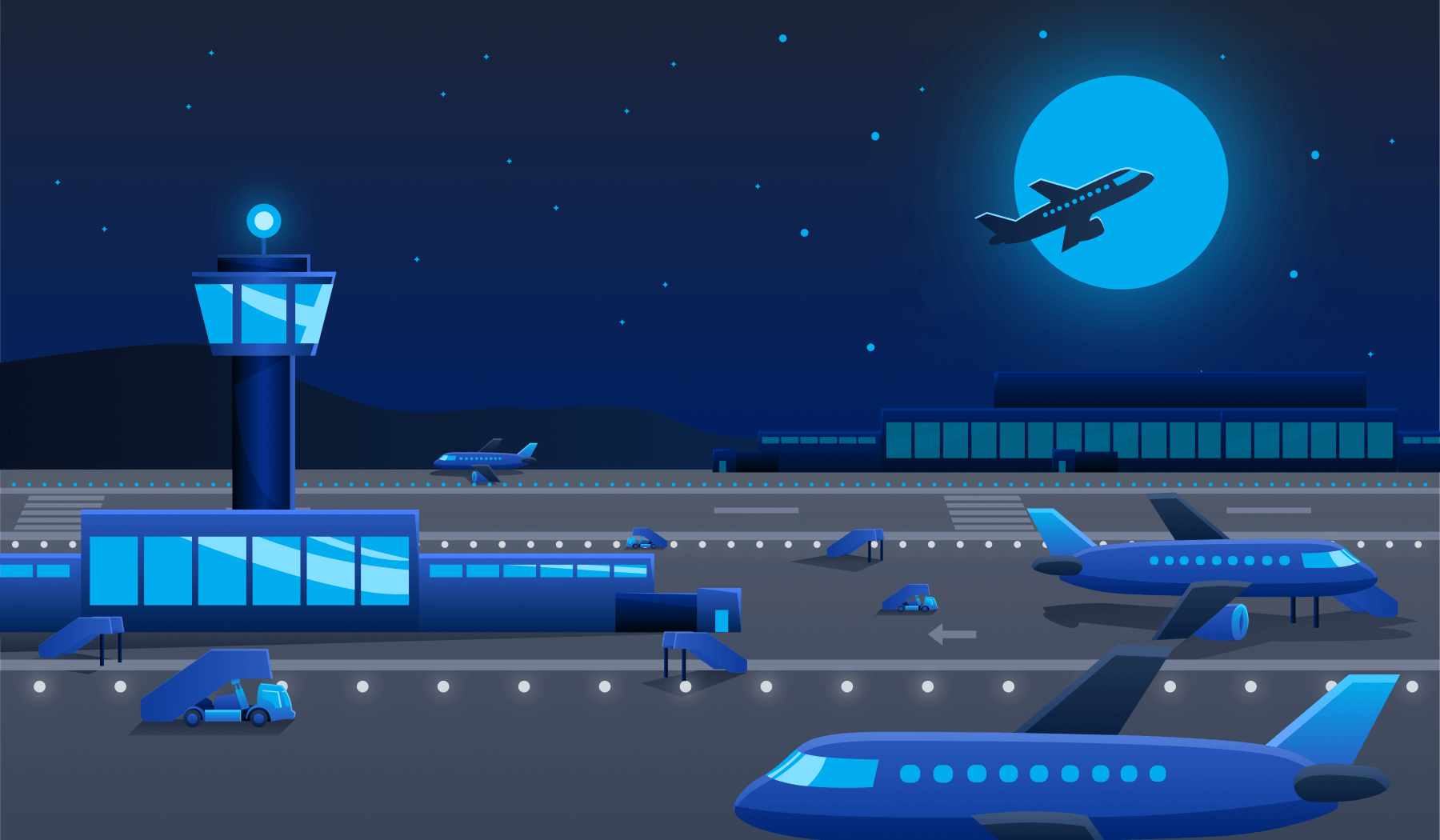
Your friend just upgraded their primary computer and, knowing you're getting into tech, has generously gifted you their old machine. It's been sitting untouched for a while, and he can't remember much about it, only that it “used to run well”. Before you can decide whether to upgrade it, wipe it, sell it, or turn it into your next project, you need to figure out precisely what you're dealing with.
Learning Objectives
- Understand what an operating system is and the role it plays
- Explain the core duties of an operating system
- Identify common OS types and their typical use cases
- Practice interacting with an OS to gather system information
Prerequisites
Before you begin this room, it is recommended that you complete the Computer Fundamentals module (coming soon) of the Pre Security Path. This room builds on core ideas introduced earlier, especially your understanding of computer hardware, device types, and how modern systems boot and operate.
- Computers at Work (coming soon)
- Computer Types (coming soon)
I understand the learning objectives and am ready to learn about operating systems!
Set up your virtual environment

An operating system (OS) is the core software that coordinates everything happening on a computer. It sits between the user, applications, and the system’s physical hardware, acting as the invisible manager that keeps the entire machine running as one unified system.

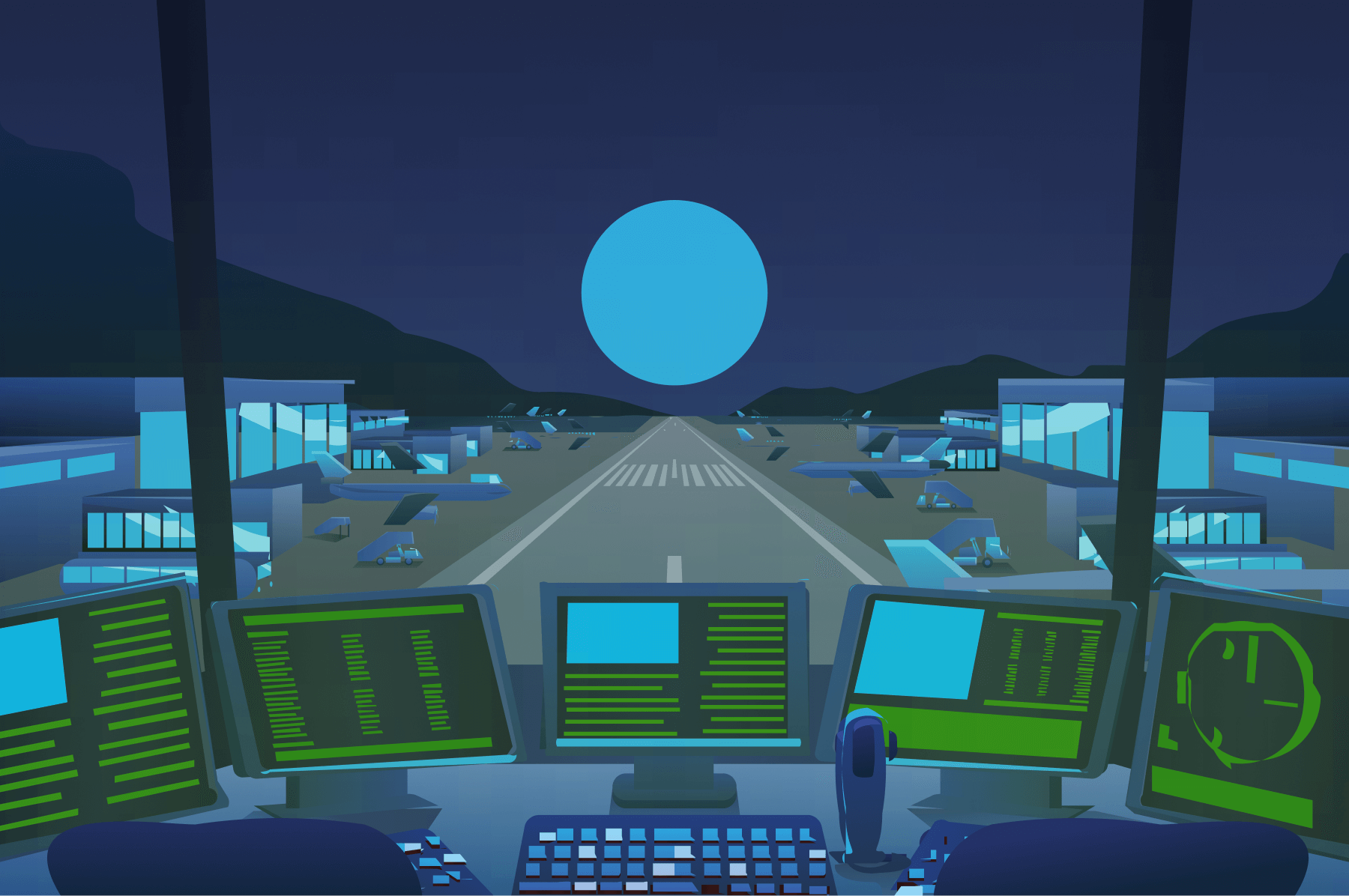
A helpful analogy is to think of your computer as a busy airport, with all its components functioning together.
- Your hardware (CPU, RAM, storage, connected devices): The runways, airplanes, fuel systems, radar, and other physical infrastructure.
- Your applications (web browser, game launcher): The various airlines and their passengers, all trying to take off, land, and request services.
- Your operating system (Windows, Linux, macOS): The entire air traffic control system, directing all of this activity. It schedules resources, manages traffic, resolves conflicts, and ensures safety.
We need an operating system because it provides this all-important job of coordination and structuring that makes modern computing possible. Without an OS, each application would need direct control over the CPU, memory, files, devices, and security. This would quickly cause conflicts, and the OS handles this by acting as the central organizer. In the Computer Fundamentals module (coming soon), you learned about various computer components and their duties. Now, we will see how the operating system manages and allocates these resources when you use your PC.
System Privilege Layers
Inside a modern computer, different parts of the system operate at various permission levels. Some components can communicate directly with the hardware, while regular applications run in a safer, restricted environment. This separation is intentional and helps prevent conflicts and security issues.
- Kernel space: The privileged, locked-down core of the OS. This is where the kernel, the part of the operating system that directly manages hardware and system resources, runs. It has unrestricted access to the CPU, memory, storage, and all hardware components.
- User space: Where all standard applications run. Applications in the user space are deliberately prevented from accessing hardware directly. Whenever they need to open or save a file, play a sound, or connect to Wi-Fi, they must make a system call and request that the kernel act on their behalf.
Building on our airport analogy, let's zoom in on the concept of privilege separation. The kernel space is the control tower, a strictly secured area where only trusted air-traffic controllers (the kernel) work. They alone can directly control the runways, radar, and other hardware. Applications in the user space are like airlines and passengers on the ground. They can't enter the tower or touch the equipment. Instead, they radio requests (system calls) to the tower, which handles them safely. This separation keeps the OS reliable: one faulty app can't crash the whole system, just as no airline can operate safely without the tower's control.
Operating System Duties
Now that you know what an operating system is and how system privilege is separated, let’s look at what it actually does behind the scenes. Every OS is responsible for a few core duties that allow your computer to run safely, efficiently, and predictably.
| OS Responsibility | What the OS Does | Example |
|---|---|---|
| Process Management | Creates, schedules, prioritizes, and terminates running programs. The OS decides how much CPU time each process gets, making multitasking feel seamless | Opening multiple apps, like your browser, music player, and social media, without your computer freezing |
| Memory Management | Allocates RAM to processes, protects the app's memory from other processes, and reclaims memory when apps are closed. When RAM runs low, the OS uses virtual memory to keep your system stable | Opening multiple app at once, the OS allocates RAM to each one and keeps them isolated so they don’t interfere or crash each other |
| File System Management | Organizes files into directories, handles naming, paths, permissions, metadata (name, size, type, timestamps) | Creating a new folder, saving a photo, or setting a file to "read only" |
| User Management | Handles multiple user accounts, authentication, and permissions to determine who can access what | Logging in with your password and keeping your files inaccessible to other user accounts |
| Device Management | Loads drivers and provides a universal interface (hardware abstraction layer), so apps can say “print this” or “play this sound” | Plugging in a new mouse, printer, or external hard drive and having it work immediately |
Operating System Security
It is important to understand that every OS also acts as a security foundation. Before any antivirus, firewall, or security tool is introduced, the OS is already enforcing protections in the background, some of which we covered above.
At a basic level, your operating system handles
- Authentication: Verifies who you are through login passwords and biometrics
- Permissions: Controls exactly what each user and app is allowed to read, write, or execute
- Isolation: Keeps every process in its own protected box (kernel/user space separation)
- System Protection: Safeguards critical system files and settings from unauthorized changes
Getting Hands-on
Now that you have a solid understanding of what an operating system is and its main duties, let's get hands-on with your new computer. Click the Start Machine button below to fire up your new computer. The machine will open in split view, at which time you'll gain access to the computer's Desktop. If split view is not opening, press the Show Split View button at the top of the page.
Remember, your friend said he doesn't know much about the PC he gave you, so let's dive in and try to gain some initial information about what you're working with. On the Desktop of the machine, there is a shortcut named About This Computer that opens your computer's System Monitor. Go ahead and open it now, as you will need it for some of the questions in this task.

Which OS space has unrestricted access to your computer's hardware?
Which OS responsibility manages user accounts, authentication, and permissions?
After opening the About This Computer shortcut, you are greeted with an overview of the system's specifications.
What version of Ubuntu Mate is your computer running?
Check out the Hardware section of the System tab.
How much memory is allocated to your machine?
OS Interfaces
Now that you have a solid understanding of the operating system and its various responsibilities, let's look at how we interact with the OS. Interaction with the OS can be divided into two main parts: the graphical user interface (GUI) and the command-line interface (CLI).
Graphical User Interface
The GUI is what you're most likely used to interacting with. It provides a graphical representation of all the information you want to access on your computer. Think of folder icons, windows for your applications, and menus for settings. We can imagine the analogy of using a navigation application. You tap an icon of the place you want to visit, and the app generates directions for you, eliminating the need for typing.
Command-line Interface
The CLI is where you enter specific text-based commands to retrieve or manipulate information. Instead of clicking on icons, you tell the computer exactly what you want using words and syntax that the system understands. This gives you far more precision, control, and speed, especially for advanced tasks, but it requires familiarity with the commands. Back to the maps analogy. Using the CLI is like entering the exact GPS coordinates of your destination. It’s direct and extremely accurate, but only if you know the correct information to type.
Later in this module, you will explore the CLI on both Linux and Windows to learn how to navigate files, inspect system information, and interact with your OS beyond the GUI.
In the screenshot below, you can see that the GUI and CLI are both used to retrieve the same information. In this case, to display the contents of the ubuntu user's home directory. The GUI requires a few clicks for folder navigation, whereas the CLI requires a command to list the directory contents.

The Operating System Landscape
Nice! We are gaining a much clearer picture of the OS, its responsibilities, and how we can interact with it to manage our computer. Now it's time to look at the bigger picture; not all operating systems are the same. Different devices and jobs demand different designs, ranging from your phone to a web server in a data center. Below are the five major categories you'll run into in the real world:
| Operating System Type | Primary Use Case | Key Characteristics |
|---|---|---|
| Desktop | Personal computers, daily work, gaming, content creation | Rich graphic interface, runs many apps at once, user-focused |
| Server | Web hosting, databases, cloud services, back-end | Headless (no GUI), maximum uptime, multi-user, remote access |
| Mobile | Smartphones and tablets | Touch-based UI, power efficient, always connected, app sandboxing |
| Embedded | Appliances, cars, IoT devices, smart TVs, routers | Tiny footprint, runs on limited hardware |
| Virtual/Cloud | Virtual machines, containers, cloud instances | Lightweight, scalable, rapid deployment |
Real World Operating Systems
Now that you’ve seen the different types of operating systems and what they’re designed for, let’s look at the major families of operating systems you’ll encounter in the real world. Each family fills one or more of the OS types we just explored. To keep things organized, we’ll highlight the common versions or distributions you’ll see in each and follow the same categories as above: Desktop, Server, Mobile, Embedded, and Virtual/Cloud.
Desktop
- Windows: The most widely used operating system on personal computers
Windows 10 (end-of-life), Windows 11 - macOS: Apple's desktop OS, known for its polished GUI and integration with other Apple devices
Sonoma (14), Sequoia (15), Tahoe (26) - Linux: Not a single OS but a family of open-source operating systems called distributions
Ubuntu, Debian, Fedora
Server
- Windows: Used in large networks, data centers, and corporate environments
Server 2016, 2019, 2022, 2025 - Linux: The vast majority of web servers, trusted for its reliability and open-source nature
Ubuntu Server, Debian, CentOS, Red Hat - Unix: Large enterprises, finance, telecom, government
IBM AIX, Oracle Solaris
Mobile
- Android: The most widely used mobile OS, which runs on phones, tablets, and smart devices
Android 14 - 16, Manufacturer versions - iOS: Apple's mobile OS running on iPhones, iPads, and other devices
iOS 17, 18, 26
Embedded and IoT Devices
- Embedded Linux: Specialized OS built into devices with dedicated functions
OpenWrt, Ubuntu Core, Yocto Project - Real-Time OS: Designed for apps where tasks need guaranteed response times (aircraft controls)
FreeRTOS, VxWorks, QNX
Virtual and Cloud
- Cloud/VM: Massive data centers that host websites, apps, and streaming services
Ubuntu LTS, Amazon Linux, Rocky Linux - Container-optimized: Lightweight alternatives to VMs that package just the app and its dependencies
Alpine Linux, Bottlerocket AWS, Flatcar Linux
Why So Many Operating Systems?
Different devices and environments require different capabilities from an OS. A laptop must be user-friendly and support multitasking. Servers require stability, security, and must be able to run continuously without interruption. Mobile devices need power efficiency and hardware integration to extend battery life. Embedded systems use lightweight operating systems designed for a specialized purpose.
The companies and communities that develop these operating systems also have their own goals. Some focus on ease of use, performance, security, openness, or customization. Because each environment values different capabilities, no single OS is the perfect fit for every situation. Instead, an ecosystem of operating systems has evolved.
Continuing Your Investigation
From the previous task, you learned that your new computer is running the Ubuntu distribution of Linux. You were also able to determine the version and release. Let's continue the investigation and gather further information about the system. You will continue to use the About This Computer shortcut, then jump into the Home directory, which can be found on your computer's Desktop.

Continue looking through the System tab of the System Monitor.
How much disk space is available?
After opening the Home directory on the Desktop, how many user directories exist?
Navigate to Alex's home directory and explore the Documents folder.
What is the flag value contained in note.txt?
Well done, you've reached the end of Operating Systems Introduction. In this room, you learned what an OS really does behind the scenes and explored key concepts, including privileges, user management, memory handling, and processes. In the practical exercise, you investigated a mystery computer gifted to you by a friend. You used the operating system to take a peek into the hardware and file systems it helps manage.
Key Terminology
Let’s recap the core terms you’ve learned. These definitions will help solidify your understanding before moving on to further learning.
- Operating system (OS)
The core software that manages hardware, applications, and all system resources. - Kernel space
The OS’s highly privileged area with direct hardware access, and the home of the kernel, which directly manages hardware and system resources. - User space
The area where regular applications run with limited permissions for safety and system stability. - Graphical user interface (GUI)
The visual part of the OS, windows, icons, and menus, that lets you interact through clicking and tapping. - Command-line interface (CLI)
A text-based interface where you type commands to control the system with precision and speed.
Further Learning
In the following rooms of the Operating System module (coming soon), you'll dive deeper into Windows and Linux operating systems, learning how to navigate each system using both the GUI and CLI. You'll gain further hands-on experience performing real tasks, gathering system information, and interacting with the OS!
- Windows Basics
- Linux CLI Basics (coming soon)
- Windows CLI Basics (coming soon)
Complete the room and continue on your cyber learning journey!
Ready to learn Cyber Security? Create your free account today!
TryHackMe provides free online cyber security training to secure jobs & upskill through a fun, interactive learning environment.
Already have an account? Log in