Back to all networks

Persisting Active Directory
Premium roomLearn about common Active Directory persistence techniques that can be used post-compromise to ensure the blue team will not be able to kick you out during a red team exercise.
medium
To access material, start machines and answer questions login.
Press 'Start' to begin
Please join this room to start the network
This will be enabled once the network is live. Please wait.
Can't reconnect? Try regenerating your VPN config.
When there are enough votes, the network will reset to its default state
This network is the continuation of the Breaching , Enumerating AD, and Exploiting AD networks. Please make sure to complete these networks before continuing
with this one. Also, note that we will discuss AD objects extensively.
If you need a refresher, have a quick reskim of this room. Now
that we have exploited AD and achieved some positions from which we can execute our goals, we need to make sure that we deploy to make sure the can't just kick us out. In this network, we will explore several different methods that could be used to persist in AD.
AD Persistence
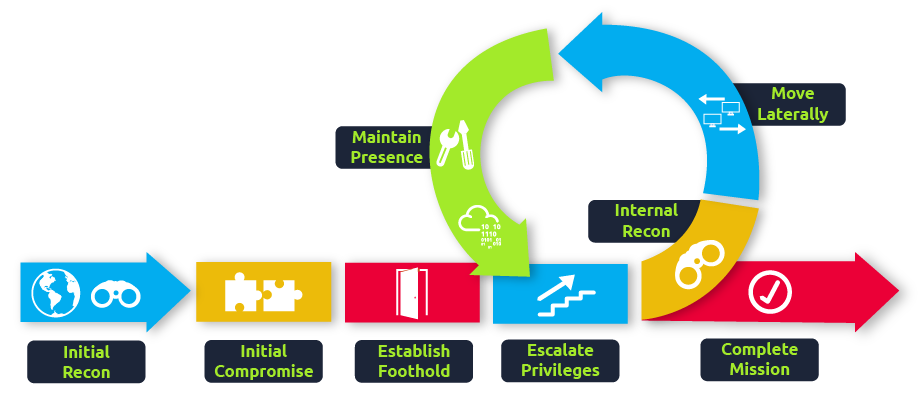
During our attack against AD, we need to make sure that we deploy persistence. This will ensure that the blue team can't kick us out by simply rotating some credentials. As mentioned before, the process of compromising AD is cyclic. We would deploy persistence as we compromise the AD estate and not just at the very end. This ensures that if one of our positions gets burnt by the blue team, we have several fallbacks. In this persistence phase, we will use several techniques that can ensure our gained access cannot simply be revoked. These persistence techniques are dependent on the specific permissions and privileges we have acquired thus far.
Learning Objectives
In
this network, we will cover several methods that can be used to persist in
AD. This is by no means a complete list, as available
methods
are usually highly situational and dependent on the AD structure and
environment.
However, we will cover the following techniques for persisting AD:
- AD Credentials and DCSync-ing
- Silver and Golden Tickets
- AD Certificates
- AD Security Identifiers (SIDs)
- Access Control Lists
- Group Policy Objects (GPOs)
Connection to the Network
AttackBox
If you are using the Web-based AttackBox, you will be connected to the network automatically if you start the AttackBox from the room's page. You can verify this by running the ping command against the IP of the THMDC.za.tryhackme.loc host. Note that the suffix for this network and the exploiting AD network is .loc and not .com. We do still need to configure , however. Windows Networks use the Domain Name Service (DNS) to resolve hostnames to . Throughout this network, DNS will be used for the tasks. You will have to configure DNS on the host on which you are running the connection. In order to configure our DNS, run the following command:
Terminal
[thm@thm]$ sed -i '1s|^|nameserver $THMDCIP\n|' /etc/resolv-dnsmasq
nslookup thmdc.za.tryhackme.loc
This should resolve to the IP of your DC.
Note:
DNS may be reset on the AttackBox roughly every 3 hours. If this
occurs, you will have to redo the command above. If your
AttackBox terminates and you continue with the room at a later stage,
you will have to redo all the DNS steps.
ifconfig or ip a, make note of the IP of the persistad network adapter. This is your IP and the associated interface that you should use when performing the attacks in the tasks.Other Hosts
If you are going to use your own attack machine, an OpenVPN configuration file will have been generated for you once you join the room. Go to your access page. Select 'PersistingAD' from the VPN servers (under the network tab) and download your configuration file.
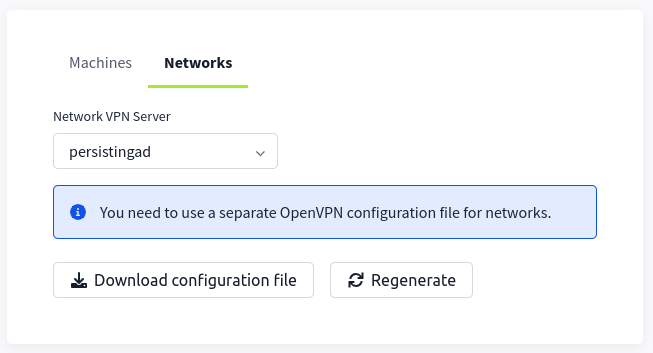
Use an OpenVPN client to connect. This example is shown on a Linux machine; similar guides to connect using Windows or macOS can be found at your access page.
Terminal
         [thm@thm]$ sudo openvpn persistingad.ovpn
Fri Mar 11 15:06:20 2022 OpenVPN 2.4.9 x86_64-redhat-linux-gnu [SSL (OpenSSL)] [LZO] [LZ4] [EPOLL] [PKCS11] [MH/PKTINFO] [AEAD] built on Apr 19 2020
Fri Mar 11 15:06:20 2022 library versions: OpenSSL 1.1.1g FIPS  21 Apr 2020, LZO 2.08
[....]
Fri Mar 11 15:06:22 2022 /sbin/ip link set dev tun0 up mtu 1500
Fri Mar 11 15:06:22 2022 /sbin/ip addr add dev tun0 10.50.2.3/24 broadcast 10.50.2.255
Fri Mar 11 15:06:22 2022 /sbin/ip route add 10.200.4.0/24 metric 1000 via 10.50.2.1
Fri Mar 11 15:06:22 2022 WARNING: this configuration may cache passwords in memory -- use the auth-nocache option to prevent this
Fri Mar 11 15:06:22 2022 Initialization Sequence Completed
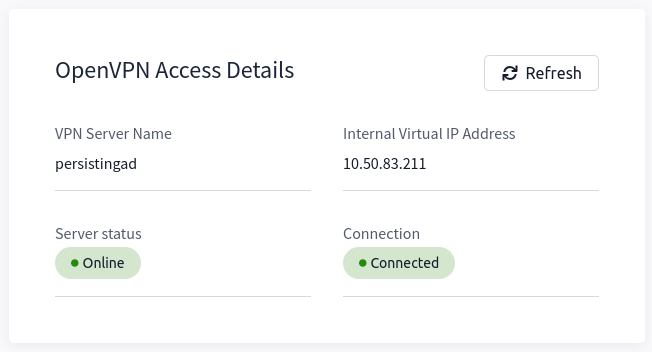
The message "Initialization Sequence Completed" tells you that you are now connected to the network. Return to your access page. You can verify you are connected by looking on your access page. Refresh the page, and you should see a green tick next to Connected. It will also show you your internal IP address.
Kali
If you are using a Kali VM, Network Manager is most likely used as DNS manager. You can use GUI Menu to configure DNS:
- Network Manager -> Advanced Network Configuration -> Your Connection -> IPv4 Settings
- Set your DNS IP here to the IP for THMCHILDDC in the network diagram above
- Add another DNS such as 1.1.1.1 or similar to ensure you still have internet access
- Run
sudo systemctl restart NetworkManagerand test your DNS similar to the steps above.
Requesting Your Credentials
To simulate an AD breach, you will be provided with your first set of AD credentials. Once your networking setup has been completed, on your Attack Box, navigate to http://distributor.za.tryhackme.loc/creds to request your credential pair. Click the "Get Credentials" button to receive your credential pair that can be used for initial access.
This
credential pair will provide you RDP and SSH access to
THMWRK1.za.tryhackme.loc. THMWRK1 can be seen as a jump host into this
environment, simulating a foothold that you have achieved. Jump hosts are often targeted by the red team since they provide access to a new network segment. You can use
Remmina or any other similar Remote Desktop client to connect to this
host for RDP. Remember to specify the domain of za.tryhackme.loc when
connecting.
For SSH access, you can use the following SSH command:
ssh za\\<AD Username>@thmwrk1.za.tryhackme.loc
When
prompted, provide your account's associated password. Although can
be used for all tasks, is faster.
Answer the questions below
I have connected to the network and configured DNS.
I have requested my credential pair from the distributor and verified that I can RDP and SSH into THMWRK1.
I am ready to learn about AD Persistence.
Ready to learn Cyber Security?
The Persisting Active Directory room is only available for Premium or Max subscribers. Signup now to access more than 500 free rooms and learn cyber security through a fun, interactive learning environment.
Already have an account? Log in