
Phishing Analysis Fundamentals
Learn all the components that make up an email.
easy

To access material, start machines and answer questions login.
Spam and remain the most common threats facing modern organizations. While spam is often low-risk, phishing can trick users into disclosing sensitive information or unknowingly deploying malware. A single unsuspecting user who clicks a malicious link or opens an attachment can give an attacker an initial foothold in the network and cause huge damage to the company.
As a defender, your role involves analyzing email components to determine if they are malicious or benign and gathering information to help harden security measures against future attacks. In this task, you will inspect raw email files and learn how to identify the true origin and intent of a suspicious message.
Learning Objectives
- Learn the basics of email delivery
- Explore email header analysis
- Investigate and analyze email bodies
- Learn about the different types of phishing
- Analyze emails to identify potential security threats
Machine Access
Click the Start Machine button below. The machine will start in Split-Screen mode. All emails used in this walkthrough are located in the Email Samples folder on the target machine's desktop.
Set up your virtual environment

I am ready to learn about phishing analysis!
Every email you’ll investigate starts with something simple: an email address. If you don’t understand how it’s structured, you may overlook the very clues attackers rely on. Email as we know it today was popularized in the 1970s on ARPANET by Ray Tomlinson, who introduced the @ symbol to separate the user from the destination system.
Anatomy of an Email Address
So what makes up an email address? Let's take a look at the example below, where an email is composed of the following elements:
- Username: User mailbox that identifies the specific recipient’s mailbox on the email server
@symbol: Separates the username from the domain and tells the system where to route the email- Domain name: Specifies the mail server responsible for receiving the message
In the last example, the intended recipient username is david and the intended recipient domain is tryhackme.com.

A helpful analogy is to think of an email address as a home mailing address:
- The domain is like the street or apartment building
- The username is the specific person or mailbox within that location
With both pieces of information, the postal worker (mail server) knows exactly where to deliver the message. In the next task, we’ll explore the network protocols responsible for sending and receiving emails.
Identify the domain used in the following email address:hatsalesman@tryhatme.com
When you send an email, several protocols work together behind the scenes to deliver your message from sender to recipient, and each protocol has a specific role:
- Simple Mail Transfer Protocol (): Sends emails
- Post Office Protocol (): Downloads emails to a device
- Internet Message Access Protocol (): Syncs emails across devices
When receiving emails, your email service will use either POP3 or IMAP, depending on how your mailbox is configured. Let's take a look at both of these protocols below:
POP3
- Emails are downloaded and stored on a single device
- Sent messages are stored on the single device from which the email was sent
- Emails can only be accessed from the single device to which the emails were sent
- Emails are typically removed from the server after download
IMAP
- Emails are stored on the server and can be downloaded to multiple devices
- Sent messages are stored on the server
- Syncs messages across multiple devices
- Emails remain on the server unless explicitly deleted
An Email's Journey
Rather than memorizing definitions, it’s easier to understand these protocols by following the path an email takes. Let's take a look at a simplified flow through of the journey an email takes from sender to receiver:
- User sends an email: The sender’s email client sends the message to their mail server using SMTP
- Mail server queries : The sending server asks DNS for the recipient domain’s mail server
- DNS responds: DNS returns the address of the recipient’s mail server
- Email is delivered: The message is sent across the Internet to the recipient’s server
- The recipient checks their mailbox: The recipient’s email client connects to their mail server
- Email is retrieved: The message is downloaded (POP3) or synced (IMAP) to the recipient’s device

Which protocol is responsible for sending an email from a client to a mail server?
Which service is used to look up the recipient domain’s mail server?
Bob wants to access his email from multiple devices, including his phone and laptop.
Which protocol should he use?
Now that you understand how an email travels from sender to recipient, let’s take a closer look at what an email actually contains when it arrives in an inbox. This is especially important when analyzing potentially malicious emails.
An email consists of two main parts:
- Email header: Contains metadata about the message, such as sender and the servers involved in delivery
- Email body: Contains the actual message content, which may be plain text or HTML
Email Headers
Let's take a look at the different components that make up an email header. In your , open up the email1.eml file in the Email Samples folder on your desktop.
- From: The sender's email address
- To: The receiver's email address
- Reply to: Address where replies are sent (not required)
- Subject: The email's subject line
- Date: The time and date that the email was sent

Viewing the Message Source
Another method to obtain the same email header information, and more, is by viewing the raw message data. Viewing the email source displays the full raw message, including all header fields and the email body, which may contain plain text or HTML. It also reveals technical details not visible in the standard inbox view.
Ensure you're viewing the email1.eml sample in Thunderbird mail in your VM instance:
- Navigate to the View menu
- Choose Message Source
This can also be accomplished with the shortcut ctrl + u.
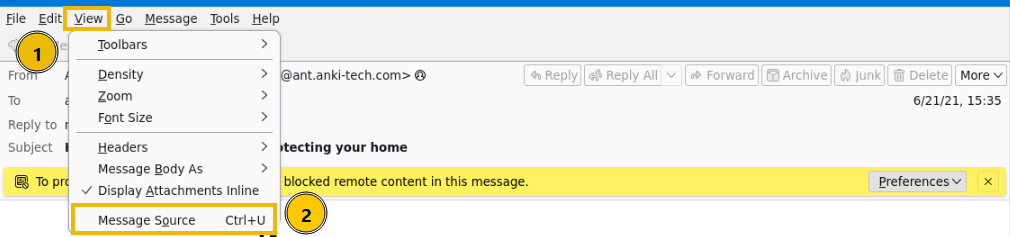
Let's take a look at the snippet of the raw message from the email1.eml file. You can see in the screenshot below that we have a wealth of information available to us for analysis, including the originating IP address and full email header details. Let's use this information to answer the task's questions below.

What is the full subject line of email1.eml?
View the message source of email1.eml using Thunderbird in your VM.
What the IP address listed as the X-Originating-Ip?
As mentioned in the previous task, the body of an email contains the message. Emails are sent as text only or formatted in HTML. HTML supports elements such as images, links, and styling. Most email clients show you the rendered content. You can also inspect the underlying source to see how the message is structured, spot embedded elements, and look for signs of or malicious content.

Viewing HTML Source Code
Just as we can inspect an email’s source to analyze its headers, we can also examine the source of the email body. This allows us to see the raw HTML that renders the message. Let’s compare the rendered version of the email1.eml message with its underlying HTML. You may notice that some images are not displayed because Thunderbird blocks them by default. By viewing the raw source, we can clearly see how these HTML elements are structured behind the scenes, giving us a closer look at links, images, and other embedded content that may not be immediately visible in the rendered view.

Reconstructing Attachments
Emails can also include attachments, such as documents, images, or other file types. Just as the email body can be analyzed by viewing the message source, attachments can be analyzed as well. This allows us to understand how the file is embedded within the email.
In the example below, you’ll see an HTML-formatted email containing a PDF attachment. The rendered view shows the attachment as it appears in the email client, while the source view shows how it is actually stored within the message. When we inspect the source, we can identify several important headers associated with the attachment:
- Content-Type indicates the file type
application/pdf - Content-Disposition specifies that the file is an attachment and includes its filename
- Content-Transfer-Encoding shows that the file is
base64encoded
The encoded base64 that follows represents the file itself. This data can be decoded to reconstruct the original attachment using either CyberChef or a base64 to PDF converter.

Open up the email2.txt file to view the source of an attachment.
What is the Content-Type of the attachment?
What is the name of the attachment from the previous question?
Decode the base64 string using either a PDF converter or CyberChef.
What is the hidden flag value?
Now that we understand how emails are structured and delivered, it’s important to recognize how attackers abuse this system. Email remains one of the most common entry points for cyber attacks, often relying on to trick users into taking action.
In this task, we’ll explore the different types of malicious emails and the techniques attackers use to make them appear legitimate. By understanding these patterns, you’ll be better equipped to identify suspicious messages and avoid common traps before they compromise your systems. Different types of malicious emails can be classified as one of the following:
- Spam: Unsolicited bulk emails sent to a large number of recipients. A more malicious form of spam is often called malspam.
- Phishing: Emails that impersonate a trusted entity to trick recipients into revealing sensitive information.
- Spear Phishing: A targeted form of phishing aimed at a specific individual or organization, often using personalized information.
- Whaling: A type of spear phishing that specifically targets high-level executives (CEO, CFO) to obtain sensitive data or financial access.
- Smishing: Phishing attacks conducted via SMS or text messages, targeting users on mobile devices.
- Vishing: Phishing attacks carried out through voice calls, where attackers use social engineering over the phone.
Anatomy of a Phishing Email
When it comes to phishing, attackers often rely on similar techniques regardless of their goal. Their objective may be to harvest credentials, deliver malware, or gain unauthorized access to a system, but the methods used to trick the recipient are often the same.
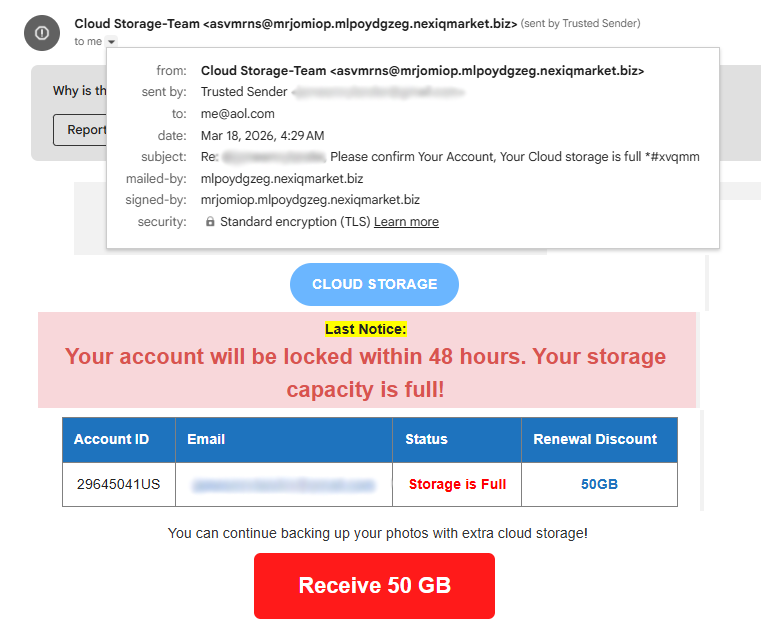
Below are some common characteristics of phishing emails:
- Spoofed From Address: The sender’s email is spoofed to appear as a trusted entity (
noreply@microsof.com) - Urgent Subject or Message: The email creates a sense of urgency (“Your account will be locked in 24 hours”)
- Brand Impersonation: The email is designed to mimic a legitimate organization (logos or colors matching a real company)
- Grammar & Spelling Issues: The message may contain errors, though with AI these are now less common (awkward phrasing or unnatural wording)
- Generic Content: The message lacks personalization (“Dear Customer” instead of your name)
- Hidden or Shortened Links: Hyperlinks may disguise their true destination (
bit.ly/secure-login) - Malicious Attachments: Attachments are included and disguised as legitimate files (
invoice.pdf.exe)
Safe Analysis
When dealing with hyperlinks and attachments, be careful not to click them accidentally. Hyperlinks and IP addresses should be defanged. Defanging makes URLs, domains, or email addresses unclickable to prevent accidental clicks that could lead to a security breach. It works by replacing special characters, such as @ in an email or . in a URL, with alternate characters:
- Original URL:
http://www.suspiciousdomain.com - Defanged URL:
hxxp[://]www[.]suspiciousdomain[.]com
Investigation
Let's put all of this knowledge to the test and analyze the email titled email3.eml within the virtual machine to answer the questions below.
Which reputable organization is being spoofed in this phishing attempt?
What is the sender's email address?
Inspect the email message source.
What is the defanged X-Originating-IP?
Continue analyzing the email message source.
Which mail server generated the Authentication-Results header?
In this room, you explored the anatomy of an email, starting with the structure of an email address and the path a message takes from sender to recipient. You then developed the technical skills needed to investigate suspicious emails by extracting and analyzing both the header and body source code. Finally, you examined common techniques and applied your knowledge to analyze real-world examples, identifying attacker intent. Nicely done!
Before moving on, it’s also important to understand Business Email Compromise (BEC), a type of attack where an adversary gains access to a legitimate internal email account and uses it to trick others into performing unauthorized or fraudulent actions.
Further Learning
This room is the first of a series of rooms that make up the Phishing Analysis module of the Level 1 Path. You are encouraged to continue your learning with the walkthrough and challenge rooms below:
What attack, signified by the acronym BEC, uses a compromised email to trick employees into fraud?
Ready to learn Cyber Security?
TryHackMe provides free online cyber security training to secure jobs & upskill through a fun, interactive learning environment.
Already have an account? Log in