
M365 Monitoring Basics
Learn the importance of Entra ID and M365 in modern SOC environments and explore their logs.
medium


To access material, start machines and answer questions login.
During a routine shift, you, a L2 SOC Analyst at FineGalo, received an alert about multiple failed authentication attempts against a cloud account, followed by a successful login. Shortly after, suspicious behavior is observed in the user’s Microsoft 365 services. On their own, each event might seem explainable, but together, they tell a more concerning story.
The organization relies entirely on Microsoft Entra ID for authentication and Microsoft 365 (M365) for collaboration and email. There are no endpoint alerts and no network indicators to rely on. Every clue lives in the logs of these cloud solutions.
In this room, you’ll step into that investigation and learn the role of Entra ID and M365 in modern company environments by analyzing their logs!
Learning Objectives
- Understand the risks of identities and why attackers target them in modern environments.
- Understand Entra ID and M365 as critical log sources for modern SOC investigations.
- Understand Entra ID and M365 log types and core structure.
- Basic understanding of how to use logs to identify attacks with Entra ID and M365 logs.
Learning Prerequisites
Let's start!
Why Companies Moved Identities to the Cloud?
Before cloud identity providers, organizations like FineGalo managed identity separately for each platform. Security controls were tied to individual systems, meaning protections like , strong password policies, and access restrictions were available only if the platform supported them, for example:
| Platform | Security Problem |
|---|---|
| Internal Email Server | Does not support MFA. |
| HR System | Does not provide authentication logs. |
| Project Management Tool | Does not enforce password policies. |
| File Sharing Service | Does not support access controls. |
As companies moved to platforms and remote work, this fragmented model became hard to manage and even harder to secure. Platforms like Microsoft Entra ID solve this by centralizing authentication (who the user is) and authorization (what the user is allowed to do) into a single control plane.
This leads to the classic question: "Identities are only user (person) access credentials?"
What Is an Identity?
A digital identity is a set of attributes that uniquely represent an entity within a computer system. That entity can be a person, a device, or a software component. Identities are used to authenticate entities, authorize their access to resources, enable communication, and support actions such as accessing services or performing transactions.
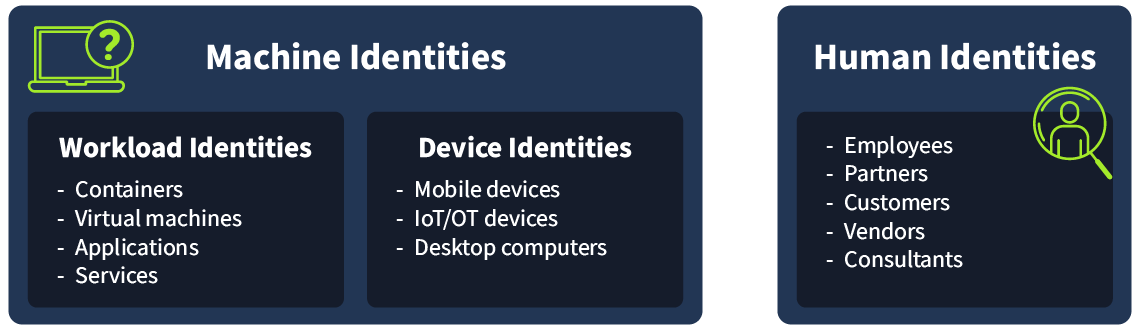
At a high level, identities can be grouped into three categories:
- Human identities: Represent people, such as employees, contractors, partners, or customers.
- Workload identities: Represent software components, including applications, services, scripts, or containers, that need to authenticate to other systems.
- Device identities: Represent physical devices like desktops, laptops, mobile phones, and devices. These identities are separate from the humans who use them.
An Identity Provider () is the system responsible for creating and managing these identities. It handles authentication (verifying identity), authorization (controlling access), and auditing by recording identity-related activity across connected services.
Microsoft Entra ID is an example of a cloud-based identity provider. Other examples include Twitter, Google, Amazon, LinkedIn, and Apple.
Example: You can use your Google account credentials to log in to Spotify. Here, your Google Sign-In is the IdP, and Spotify is the service provider (SP).
Benefits of an IdP
- Centralized authentication and management: All user sign-ins are handled in a single location, making it easier to manage access and investigate suspicious activity.
- Single Sign-On (): One successful authentication grants access to multiple cloud services, improving usability while reducing password sprawl.
- Stronger authentication: Features such as MFA and Conditional Access can be enforced uniformly across users and applications, rather than configured per system.
- Better visibility and logging: Every authentication attempt generates rich identity logs, giving analysts the context needed to detect and investigate threats.
What type of application is Entra ID?
What type of identity is a server account?
Now that you understand what an Identity Provider () is, it becomes clear why attackers target it. In a cloud-first organization like FineGalo, Entra ID is the gateway to everything. It authenticates users and authorizes access to services like Outlook, Teams, SharePoint, and internal applications. That means a single compromised account, especially a privileged one, can give an attacker legitimate access without needing malware, local system access, or a foothold inside the network.
Before you dig into the alert, we’ll cover the attacker goals behind cloud identity attacks and the most common risks in identity platforms that enable them.
Why Attackers Are Targeting Cloud Credentials
Attackers target cloud-based identity providers because they provide:
- Remote access from anywhere: Authentication occurs over the internet, so attackers don’t need access to the internal network.
- Legitimate access to multiple services via : One successful sign-in can unlock emails, files, chat, and connected apps for a user.
- Out of the radar of traditional tools: Firewalls and endpoint tools may see nothing suspicious because the attacker is using valid credentials or the authentication is occurring outside of their visibility.
- Direct access to high-value resources: Email and collaboration platforms contain sensitive data, internal communication, and often allow resetting account credentials and other authentication factors.
Entra ID has plenty of features to better protect identities within a tenant and prevent attackers from being successful. This leads to another important question: “If Entra ID is so secure, how do these attacks still work?”
Cloud Identity Providers Security Gaps
Cloud identity providers usually offer strong security controls, but those controls only work when they’re properly configured and consistently enforced. In many incidents, attackers don’t rely on advanced exploits; they simply exploit the lack of these security configurations.
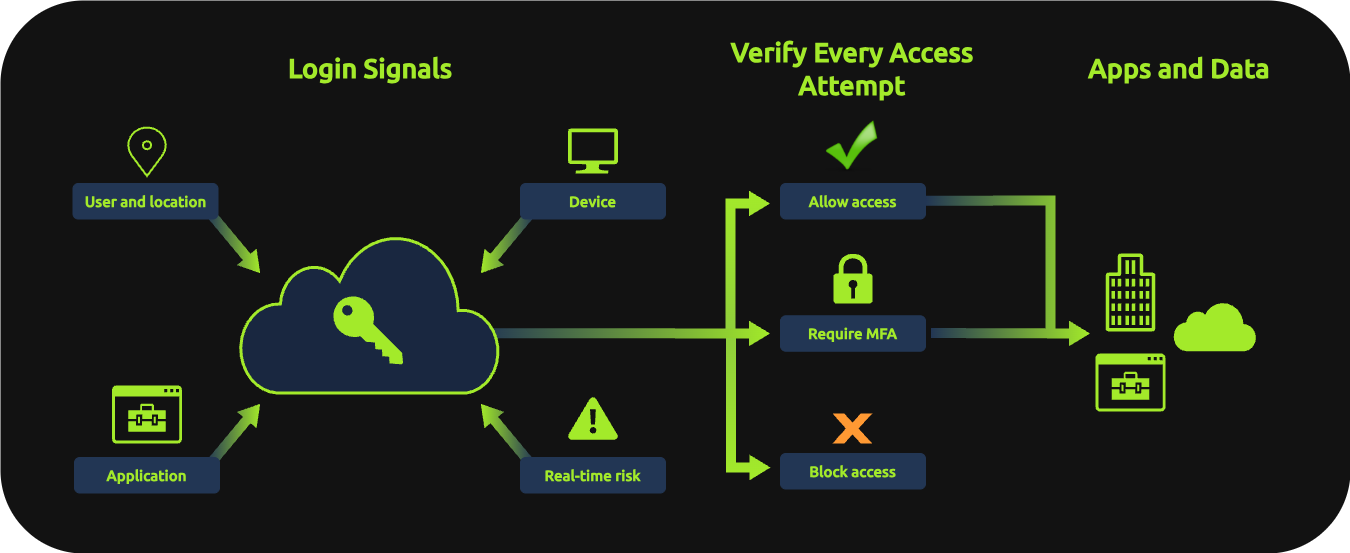
Using Entra ID as an example, the diagram below illustrates how the platform evaluates authentication signals to decide whether to allow, block, or request validation before a user can access the organization's apps and data.
Common misconfigurations (or lack of configuration) that increase the risk of compromise:
- Lack of multi-factor authentication (MFA) enforcement: Attackers can gain access with simple stolen credentials, bypassing MFA entirely.
- Overly permissive access policies: Broad policies or group exclusions create gaps, allowing sign-ins from any location or exempting admin accounts from security requirements.
- Excessive administrative privileges: Too many admin accounts or standing privileges increase the attack surface and, if compromised, provide full tenant control.
- Weak password policies: Default settings may allow easily guessable passwords without protection against known breaches or common password lists.
- Disabled authentication risk policies: Risky authentication attempts from suspicious or locations may be permitted if security policies aren’t enabled.
- Insufficient logging and monitoring: Without active monitoring of sign-in and audit logs, suspicious activity can persist undetected for extended periods.
Importance of Identity Logs
After learning the identity risks, one thing is clear: attackers don’t need advanced exploits — they just need a gap.
Those gaps don’t always trigger alerts; the strongest evidence often lives in logs. That’s why we will cover many of these logs in this module, as they are a powerful resource for identifying both Entra ID and M365 threats.
The logs can reveal to us:
- Successful and failed logins
- Reasons for failed logins (e.g., bad password)
- Account lockouts
- MFA prompts and results
- Source IP address and users' geographic location
- Device and browser information
- Client/app used to authenticate (browser, mobile app, etc.).
- Conditional Access outcomes (allowed, blocked, MFA required, etc.).
You can also use this identity data to correlate with service logs, such as M365, to analyze what the user did after successfully accessing an account (mailbox access/management, file downloads, chat activity, etc.).
Now that you know the importance of cloud-based identity logs, we will start exploring them in the following task!
What authentication resource can prevent attackers from authenticating with only a stolen password?
What can help us detect and monitor cloud identity threats?
Set up your virtual environment

After understanding why attackers target cloud identities, let's dive into how we use their logs. This is where Microsoft Entra ID's logging capabilities become your most valuable tool.
Microsoft Entra ID generates detailed logs for every authentication attempt, configuration change, and administrative action within a tenant. These logs don't just tell you what happened, they tell you who did it, when, where from, and often why it succeeded or failed.
Entra ID Core Components
Before we explore the logs, let's understand the key components that generate them:
Users and Sign-ins (Authentication)
Every time a user attempts to authenticate to any service protected by Entra ID, a record is created. This includes successful logins, failed attempts, challenges, and the context around each event (IP address, location, device, application, and others).
Roles and Access Decisions (Authorization)
After authentication, Entra ID determines what the user is allowed to do based on their assigned roles and permissions. Changes to these roles, group memberships, or permissions are all logged in audit events.
Security Features
Entra ID includes built-in security capabilities that generate their own logs:
- Multi-factor authentication (MFA): Logs show whether MFA was required, prompted, satisfied, or bypassed.
- Conditional Access policies: These policies enforce rules like "require MFA from untrusted locations." Logs show which policies were applied and their outcomes (allowed, blocked, MFA required).
- Identity Protection: Entra ID's native threat detection flags risky sign-ins (impossible travel, anonymous IP, password spray) and risky users. We won't dive deep into these in this room, but we will see how these logs can help us identify threats in the next room, Entra ID Monitoring.
Exploring Entra ID Logs
To explore the Entra ID logs and investigate the alert, we will use a instance. Start the lab by clicking the Start Lab Machine button below. You will then have access to the Splunk Web Interface.
To access Splunk, please wait for the to start and follow this link:
Please wait 4-5 minutes for the Splunk instance to launch. Use Splunk’s All Time range to search. The indexes where logs are stored for each practical exercise are present in each task.
Sign-in Logs
The alert you are tasked to investigate mentions multiple failed authentication attempts followed by a successful login. The Sign-in logs capture every authentication attempt made against a tenant. It will show you the brute force pattern and the moment the attacker succeeded!
In the Splunk instance, you can start hunting by filtering all the Sign-in (authentication) logs:
| List all Sign-in events |
|---|
|
The structure of a Sign-in log has a couple of fields that may help you identify a suspicious authentication attempt:
{
  "id": "014adaeb-c9db-4119-8a9b-a9f68dd4b700",
  "createdDateTime": "2026-02-11T17:15:10Z",
  "userDisplayName": "John Doe",
  "userPrincipalName": "john.doe@contoso.onmicrosoft.com", // The user address
  "userId": "a1b2c3d4-e5f6-7890-a1b2-c3d4e5f67890",
  "appId": "4765445b-32c6-49b0-83e6-1d93765276ca",
  "appDisplayName": "OfficeHome", // Which application the user logged in to. In this case, the main web portal (office.com)
  "ipAddress": "203.0.113.45", // The IP address used by the user.
  "clientAppUsed": "Browser",
  "correlationId": "dc8fb3db-403c-43e4-b759-21aa137a143a",
  "conditionalAccessStatus": "success",
  "isInteractive": true,
  [...]
  "resourceDisplayName": "OfficeHome",
  "resourceId": "4765445b-32c6-49b0-83e6-1d93765276ca",
  "status": {
    "errorCode": 0, // The result of the authentication. Code 0 means successful.
    "failureReason": "Other.",
    "additionalDetails": null
 [...]
  "location": {  // Details about the location from the IP address used by the user.
    "city": "New York",
    "state": "New York",
    "countryOrRegion": "US",
    "geoCoordinates": {
      "altitude": null,
      "latitude": 40.7128,
      "longitude": -74.0060
    }
  },
  "appliedConditionalAccessPolicies": [ // Information about which access control policy was applied during the authentication process.
    {
      "id": "c63499f4-64b6-4943-bfc3-52fbb641ef10",
      "displayName": "Require MFA",
      "enforcedGrantControls": ["Block"],
      "enforcedSessionControls": [],
      "result": "notApplied"
    }
  ]
}
With this context, you can use the errorCode to find failure attempts and other relevant data:
| List all failed Sign-ins |
|---|
|
Error codes are a big ally when analyzing suspicious authentication alerts. They can help you to understand the stage of a credential attack the attacker is in. Below are common error codes:
50126: Invalid username or password50053: Account locked due to too many failed attempts50074: MFA required but not provided50055: Password expired
If you want to verify what an error code means, Microsoft has a useful tool to help you research it.
In the same query results, you can see that all failed attempts are from the same source IP in the ipAddress field. This is relevant information for further investigation into what this IP address has done in the tenant.
Now, you can filter the successful logins from this source and validate which account was compromised and the applications the attacker accessed by changing the <ADD-IPHERE> placeholder to the IP address you want to investigate in the following query:
| List all successful Sign-ins from an IP address |
|---|
|
You should see the exact account that the attacker compromised!
Practice
For this task, you will answer a couple of questions regarding this suspicious authentication.
With the filter index=scenario sourcetype="azure:aad:signin", you will be able to see all Sign-in logs, but feel free to use any other queries you learned in this task.
Remember to search for All Time to find all log activity.
What is the email address of the compromised identity?
What is the IP address used by the attacker?
What is the city of the IP address used by the attacker?
When was the first successful sign-in in the compromised account after the failure attempts?
Answer Format: 1/12/25 1:15:00.000 PM
(Exact Splunk Time value)
What is the first application the attacker accessed after the office home page?
Answer Format: The exact value of the appDisplayName field.
After confirming a compromised account, the next step is to identify the changes the attacker made to it. This is where you should use Audit Logs.
Audit logs capture administrative actions and changes made within the Entra ID environment. Below are some examples of post-compromise activities an attacker can perform, and you can hunt with logs:
- Resetting passwords to maintain access
- Adding new methods or devices
- Assigning privileged roles to escalate access
- Modifying user attributes
- Registering malicious applications
Hunting for Post-Compromise Activity
Within the same instance, you can use the following query to filter for Entra ID audit logs and see account or environment changes:
| List all Audit logs |
|---|
|
Each event has its own particular properties, but you should pay additional attention to the fields below, since they appear in all events and can reveal what was changed, who changed, and the target:
activityDisplayName: The detailed activity or action that was performed by a user or app. All activities that generate logs are documented on this Microsoft page (e.g., "Change user password", "Disable account").initiatedBy: The account or app that performed the action. When the source of the action is a user account, this field contains its email address. In the case of an app, it will have the app name.initiatedBy: {
app: {
appId: null
displayName: Microsoft password reset service // An app executed the change.
servicePrincipalId: d6871dee-b91e-42a7-b98e-beeb5357dfff
servicePrincipalName: null
}
user: null
}targetResources: The account or object that has been changed or affected by an action.targetResources: [
{
displayName: null
groupType: null
id: d15f0e8c-80f7-41c0-b861-207d79cbb734
modifiedProperties: [
{
displayName: ForceChangePassword
newValue: "True"
oldValue: "False"
}
{
displayName: Password // The Resource that was changed
newValue: null
oldValue: null
}
]
type: User
userPrincipalName: email@example.thm // The target identity
}
]
With that context, you can query specifically for the changes related to the compromised account you found in the previous task by using its user email address and changing the <ADD-USER-EMAIL> placeholder in the following queries:
| List changes targeting a specific user |
|---|
|
| List changes performed by a user |
|---|
|
You've now briefly learned how to leverage Entra ID logs to identify suspicious activity in a user account by checking its Sign-In logs and post-compromise activity using Audit logs.
In the next task, we'll explore Microsoft 365 (M365) logs to see what the attacker did after gaining access to cloud services like Outlook, Teams, and SharePoint.
Practice
For this task, you will answer a few questions about changes to the compromised account.
With the filter index="scenario" sourcetype="azure:aad:audit", you will be able to see all Audit logs, but feel free to use any other queries you learned in this task.
Remember to search for All Time to find all log activity.
What was the first change made by the attacker in the compromised user account?
Answer Format: Paste the exact value of activityDisplayName
What is the activityDisplayName that reveals all the details of the modified properties in a user?
What is the second change made in the account?
Answer Format: Paste the exact value of the activityDisplayName field.
You've confirmed the account is compromised through Entra ID logs. Now, the investigation shifts to what the attacker did with that access. While Entra ID tells you who authenticated, Microsoft 365 logs tell you what they did after.
What is Microsoft 365?
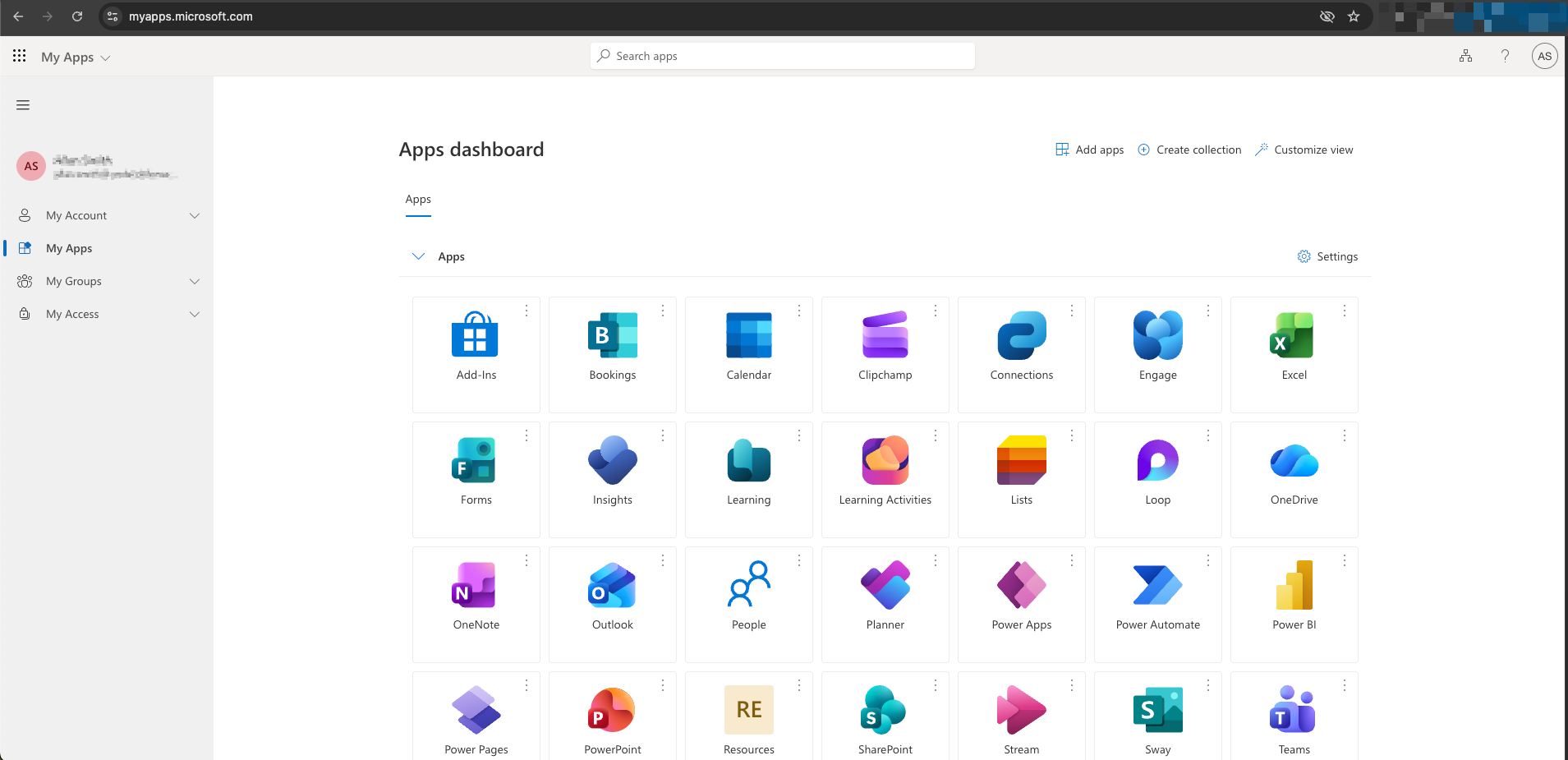
Microsoft 365 (M365) is a collection of cloud-based productivity and collaboration services tied to Entra ID identities. Once a user authenticates through Entra ID, they gain access to services like:
- Exchange Online (Outlook): Email, calendars, and mailbox management
- SharePoint Online: Document storage, file sharing, and team sites.
- OneDrive: Personal cloud storage.
- Teams: Chat, meetings, and collaboration.
- Other services: Power BI, Dynamics, and various Microsoft apps.
Why M365 is a High-Value Target
For an attacker with valid credentials, M365 services provide:
- Access to sensitive communications: Email contains business decisions, credentials, financial information, and confidential discussions.
- Document repositories: SharePoint and OneDrive store the company's intellectual property, customer data, and strategic plans.
- mechanisms: Mailbox rules, forwarding rules, and application permissions allow attackers to maintain access even after password changes.
- Further credential harvesting: Attackers can search for credentials, keys, or sensitive information in emails and files.
M365 Relevant Logs
M365 generates detailed audit logs for user and administrative actions across all services. These logs are centralized in the Unified Audit Log, which captures events from Exchange, SharePoint, OneDrive, Teams, and other M365 services.
Below are some key log categories relevant to investigations:
Exchange (Mailbox) Logs:
- Mailbox access and email operations (read, send, delete)
- Mailbox rule creation (often used for persistence or email exfiltration)
- Mailbox permission changes
- Forwarding rule creation
SharePoint and OneDrive Logs:
- File accessed, downloaded, or modified
- File sharing and permission changes
- Folder operations
General M365 Activity:
- Application permissions granted
- Service configurations changed
- Administrative actions performed
The complete reference for M365 audit logs can be found here.
Let's explore M365 logs!
Exploring M365 Logs
In the instance, you can filter M365 unified audit logs with:
| List all M365 Audit logs |
|---|
|
Again, each event has its own specific structure, but below are key fields in M365 audit logs that appear in all log types:
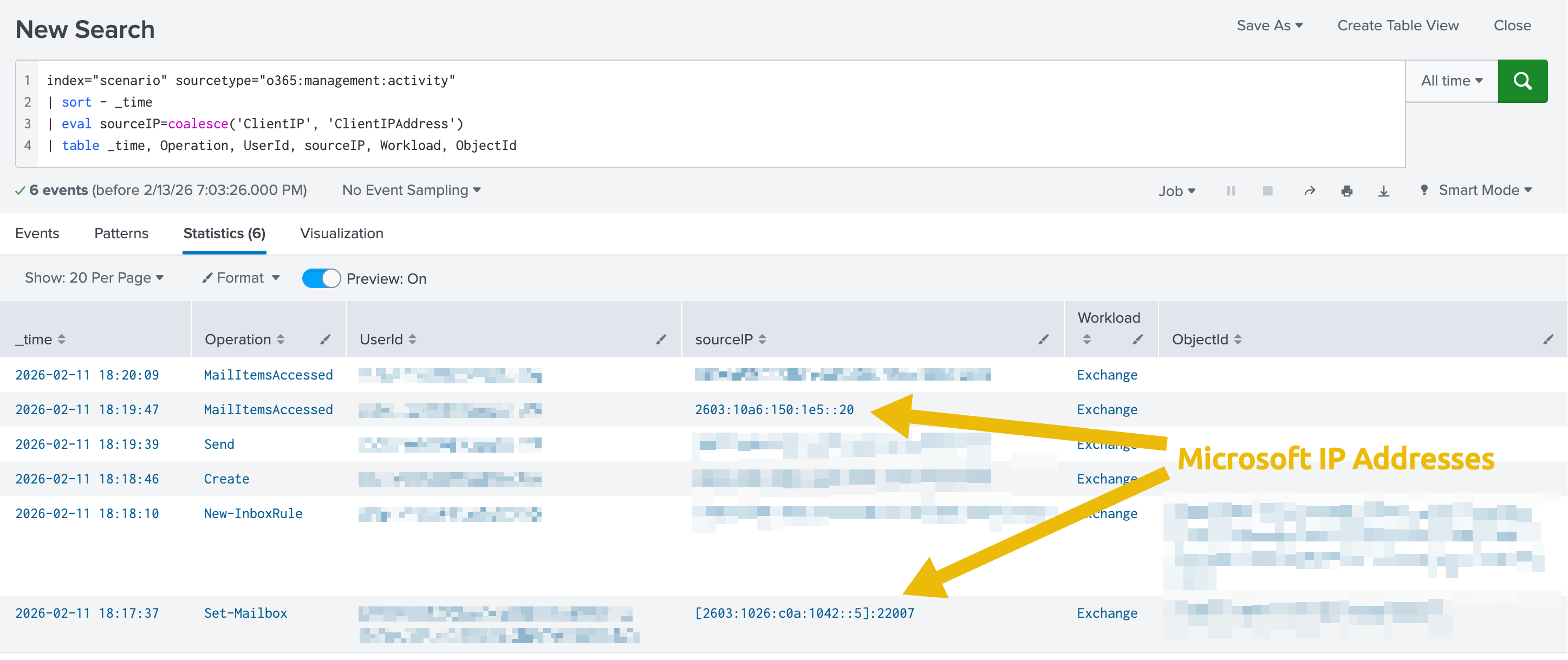
Operation: The specific action performed (e.g., "New-InboxRule", "FileAccessed", "Send").UserId: The account that performed the action, usually an email address.ClientIPorClientIPAddress: The source IP address (Note that sometimes this information can be an Office 365 IP address. Ensure you always check the registrant for ClientIP).Workload: The M365 service where the action occurred (Exchange, SharePoint, OneDrive).ObjectId: The target resource (email address, file path, mailbox).
Hunting for Post-Compromise M365 Activities
For your investigation into M365 logs, identifying suspicious activities on the compromised account is essential. You will further explore these attackers' techniques in this module. For now, here are some common post-compromise activities you should be aware of:
Mailbox Manipulation:
- Creation of inbox rules to delete, forward, or move emails
- Mass email deletion or moves to the deleted items
- Emails sent to external addresses
- Access from unusual IP addresses or locations
File Operations:
- Mass file downloads from SharePoint or OneDrive
- Access to sensitive or executive-level documents
- File sharing to external domains
- Downloads of files the user wouldn't normally access
Below is an enhanced Splunk query that might help you as a starting point to identify what the attacker did with the user account you found in task 4 by replacing the <ADD-USER=EMAIL> placeholder:
| List actions performed by a user |
|---|
|
Practice
For this task, you will answer a few questions about the activities on the compromised account.
With the filter index="scenario" sourcetype="o365:management:activity", you will be able to see all M365 audit logs, but feel free to use any other queries you learned in this task.
Remember to search for All Time to find all log activity.
What is the application used by the attacker?
Answer Format: Paste the exact value of the Workload field.
What is the change made in the user application by the attacker?
Answer Format: Paste the exact value of the Operation field.
What is the subject of the email message sent by the attacker?
When did the attacker access the response to the message?
Answer Format: 1/12/25 1:15:00.000 PM
(Exact Splunk Time value)
Which path was the response stored in?
Answer Format: \PathName
Congratulations! You've completed your first investigation into a compromised cloud identity using Entra ID and M365 logs.
What You've Learned
- Learned why attackers target Entra ID and M365, and the common gaps they exploit.
- Learned that the real power of these log sources lies in correlating them to build a complete timeline of an attack.
- Understand that Entra ID Sign-in logs are the investigation starting point to identify:
- Suspicious authentication attempts.
- If an attacker successfully authenticates.
- The location from which the authentications are coming.
- Understand that Entra ID Audit logs help you to identify privilege escalation or at the identity level.
- Understand that M365 Audit logs help you to identify what the attacker did with legitimate access in the company's applications, such as Outlook, SharePoint, and others.
In the next room, Entra ID Monitoring, you'll learn about multiple common techniques attackers use when targeting Entra ID identities and how you can detect or prevent them.
Ready to explore Entra ID threats!
Ready to learn Cyber Security?
TryHackMe provides free online cyber security training to secure jobs & upskill through a fun, interactive learning environment.
Already have an account? Log in