Task 1: Introduction
Active Directory (AD) enumeration is a crucial first step in penetration testing Microsoft Windows enterprise networks. During many internal penetration tests, we are often given VPN access to the target network without user credentials. That means we need to gather as much information as possible about the domain: users, groups, computers, and policies. This will allow us to identify potential vulnerabilities or attack paths that might give us an initial foothold, such as access to a user’s workstation.
Learning Objectives
In this room, we’ll learn how to:
- Enumerate the target domain and network.
- Enumerate valid domain users and identify misconfigurations.
- Perform password spraying attacks to get your first pair of valid AD credentials.
- Discover sensitive credentials stored in configuration files.
Room Prerequisites
Before starting the room, solid knowledge of MS Windows, Active Directory, Linux, and Networking is recommended. You can learn or refresh your knowledge of these topics by checking the following modules:
- The Windows and AD Fundamentals module, including its last room, the Active Directory Basics room
- The Linux Fundamentals module
- The Command Line module
- The Networking module
Starting the Network
Before moving to the next task, click the green Start button under the network diagram. Give the network enough time to launch.
You can connect to the network in two ways:
Option 1: Using the AttackBox
Click the Start AttackBox button at the top of this room. Once ready, your AttackBox will be available on the split-screen.
Option 2: Over a VPN Connection
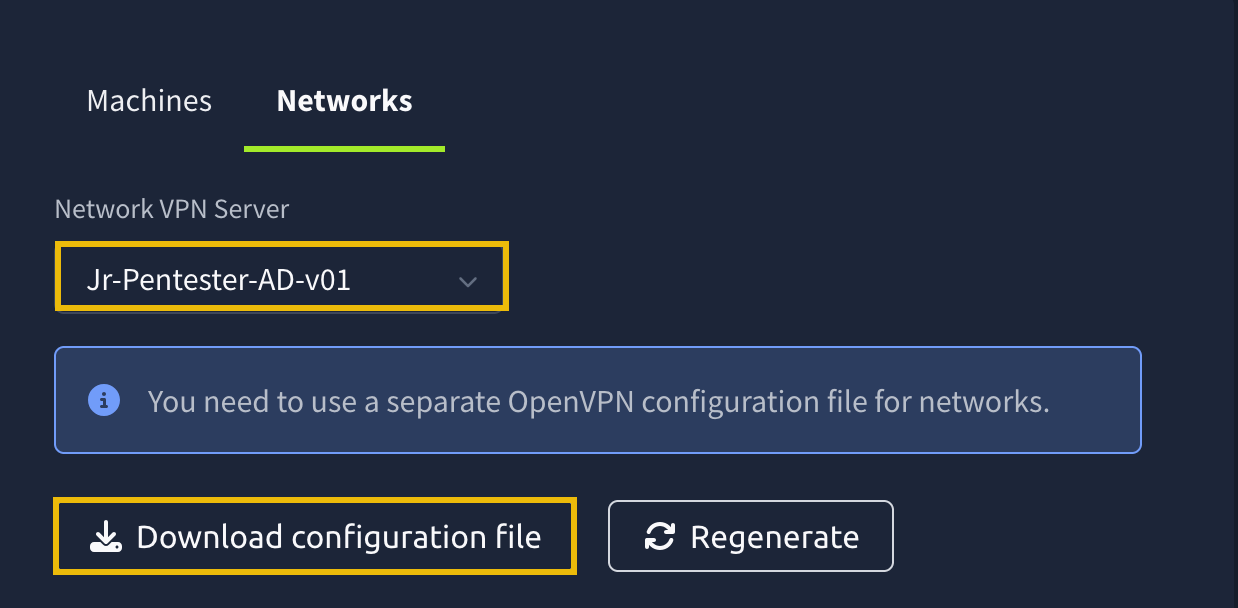
Alternatively, you can connect to the network via the VPN. To establish a VPN connection to this network, you need to browse to the access page, click the Networks tab, select Jr-Pentester-AD-v01, and hit the Download configuration file button. Note that if you don’t see this file available for download, please ensure you have started the network in the room and given it a few minutes.
Then run the following command from the same directory where your VPN configuration file is located:
sudo openvpn [your_configuration_file_name.ovpn]
If you have issues connecting to the VPN, have a look this help article.
Note 1: If you are a free user, you should use your own VM with the VPN profile described above.
Note 2: If you are a premium user, it is important that you do not use the AttackBox and the VPN connection simultaneously.
Verifying Connectivity to the Network
You can run the route command to verify that your attacker machine can communicate with the target network. The terminal below shows an example output.
           root@tryhackme:~# route
Kernel IP routing table
Destination     Gateway         Genmask         Flags Metric Ref    Use Iface
default         10.10.0.1       0.0.0.0         UG    100    0        0 ens5
10.10.0.0       0.0.0.0         255.255.0.0     U     100    0        0 ens5
10.10.0.1       0.0.0.0         255.255.255.255 UH    100    0        0 ens5
[...]
10.211.11.0     10.250.11.1     255.255.255.0   UG    1000   0        0 tun0
10.250.11.0     0.0.0.0         255.255.255.0   U     0      0        0 tun0
[...]
Alternatively, you can use the ip route command.
           root@tryhackme:~# ip route
default via 10.10.0.1 dev ens5 proto dhcp src 10.10.130.73 metric 100
10.10.0.0/16 dev ens5 proto kernel scope link src 10.10.130.73 metric 100
10.10.0.1 dev ens5 proto dhcp scope link src 10.10.130.73 metric 100
[...]
10.211.11.0/24 via 10.250.11.1 dev tun0 metric 1000
10.250.11.0/24 dev tun0 proto kernel scope link src 10.250.11.2
[...]
Confirm that you can see the 10.211.11.0 subnet in the command output. If it is in the output, your machine should be able to communicate with the target network. Moreover, you can use the ping command against the lab machines.
Troubleshooting Connectivity Issues
If you cannot connect to the network from your AttackBox, please open the terminal and run the tryconnectme command. This will run a troubleshooting script:
           root@tryhackme# tryconnectme

TryHackMe's network room connection debugger, at your service!

Before we dive deeper, please make sure that you are only using the AttackBox
and do not have your network VPN profile running anywhere!

The AttackBox uses the same VPN profile as you would use on your own machine
and you are only allowed to run the VPN profile once!

If you are running in two places, stop the other VPN and restart the AttackBox please!

If you confirm that you are only using the AttackBox, press [Y], otherwise, the debugger will quit: Y
Once you have made sure that you are only connecting to the network from the AttackBox, you can enter the following IP: 10.211.11.10
           [...]
In the network room, look at the network diagram and please provide an IP address being shown to you there.
Format should be X.X.X.X: 10.211.11.10

Trying to ping the VPN server at 10.211.11.250...
From there, follow the instructions given by the script. When the script asks for your VPN server, enter Jr-Pentester-AD-v01.
If you encounter any issues, please reach out to us on Discord or via email at support@tryhackme.com.
Answer the questions below
I am ready to begin exploring unauthenticated enumeration.